
Ledger overview
Overview
The Ledger page is the central hub for viewing, managing, and analyzing all digital asset transactions for your organization. It consolidates transaction data from multiple networks, platforms, and integrations into a unified, comprehensive ledger.
This page is essential for tracking financial inflows, outflows, fees, tags, ERP synchronization statuses, and other transaction details.
Accessing the Ledger Page
Navigate to the Ledger page from the left navigation bar.
The page displays transaction data organized into multiple tabs, each designed for specific functionalities related to financial management and reporting.
General Actions Menu
Add transaction - Manually add a new transaction to the ledger, either by entering details directly or uploading via CSV, including support for AI-assisted CSV mapping.
Calculate cost basis - Trigger a recalculation of cost basis values for selected assets, updating cumulative cost, realized gains, and other relevant metrics using the current methodology. Learn more about calculating cost basis here.
Insert data table - Create custom roll-forward tables for analyzing asset movement and balances over defined periods or criteria.
Reconcile - Open the reconciliation tool to compare ledger balances with real account balances and resolve any discrepancies efficiently. Learn more about Reconciliation in TRES here.
Revaluate - Update asset valuations based on the most recent market rates, ensuring all asset values reflect current conditions. Learn more about Revaluation here
Price feed - Set or adjust manual pricing feeds for assets, allowing for custom or corrected fiat value assignments where needed.
Spec ID rules - Configure or manage specific identification (Spec ID) rules for transaction grouping and automated classification according to your accounting policies.
Transaction Row Management
Transaction row:
A transaction row in the Ledger page displays key information summarizing a single transaction, including the transaction ID or name, timestamp, transaction hash with a link to a blockchain explorer, inflow and outflow amounts with their USD equivalents, fees, and classification tags. It also shows the ERP integration status where applicable. Expanding the transaction row reveals detailed sub-transaction data.
Available data:
Transaction ID/Name
Inflow - The amount of assets or funds received into the account, shown with its USD value.
Outflow - The amount of assets or funds sent out from the account, shown with its USD value.
Fees - Represents the cost or charge deducted for processing the transaction
Tags - Labels that classify and categorize transactions automatically or manually. For more information on setting up automation tag rules, refer to the Automations guide.
ERP - shows the integration status of each transaction with your connected ERP system, indicating whether the transaction is synced, ready to sync, failed, or requires attention. For more information on ERP integrations, refer to the ERP Integration guides.

Sub-transactions Row Management:
A sub-transaction in TRES Finance shows detailed information such as the sender and receiver accounts, transferred amounts with asset and fiat values, transaction impact on cost basis, ERP sync status, and running balances for the organization and wallet, providing a granular view of the components within a main transaction.
Click any transaction row to expand and view associated sub-transactions with detailed breakdown.
SubTX Available data:
From/To - the sender and receiver involved in the transfer, with internal accounts typically marked and additional details available on hover.
Amount - The quantity of the asset transferred, with indicators for inflow or outflow and the corresponding fiat value when available.
Transaction impact - Shows data related to your cost basis, gains and losses.
ERP Sync - Indicates the mapping and synchronization status of that specific sub-transaction with the ERP system.
Additional columns you can configure to display in the subTX table:
Wallet Running Balance After - Shows the balance of the asset in the specific wallet immediately after the sub-transaction has occurred, reflecting the updated total for that wallet.
ORG. Running Balance After - Displays the organization’s aggregated balance for the asset following the sub-transaction, providing a global view of that asset’s total across all wallets.
Wallet Running Balance After (Asset Class) - Indicates the new balance for the asset class, not just the specific asset, within the wallet after the sub-transaction, capturing grouped assets like all stablecoins or tokens.
Financial Action Group - Classifies the sub-transaction as part of a financial action group, identifying its accounting or operational role (such as transfer, fee, or trade) for easier analysis and reporting within the ledger.
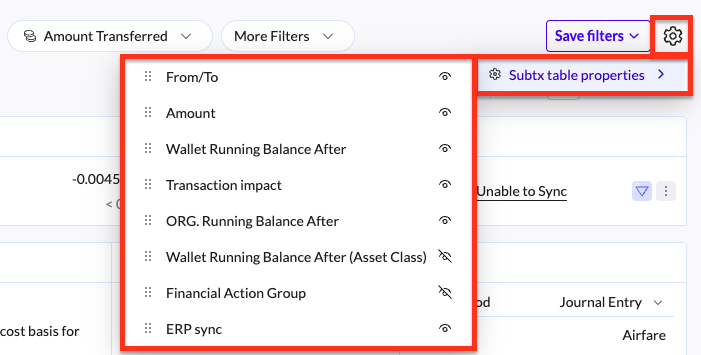
Sub-transaction row actions guide
Filters and Search
The Ledger page provides rich filtering options to quickly locate transactions:
Date Range: Default last 30 days or custom range
AI Search: Natural language queries for specific transactions
Hash Search: Filter by transaction hash
From-To: Select sender or recipient accounts (internal/external)
Look for exact transaction flows by specifying a wallet or contact as either the sender or the receiver.
This makes it easier to investigate specific fund movements, reconcile payments with a particular counterparty, and get cleaner results when tracing the origin or destination of transactions.
Assets: Filter by digital asset or class
Tags: Transaction classification tags
Networks: Blockchain networks involved
Integrations: ERP or finance tools connected
Amount Transferred: Filter by transaction value range
More Filters: Additional advanced criteria (transaction type, status flags, notes presence)
Saved filter presets enable quick reuse of common search configurations.

Ledger Page Tabs
1. Transactions Tab
Displays a complete history of all transactions across digital assets.
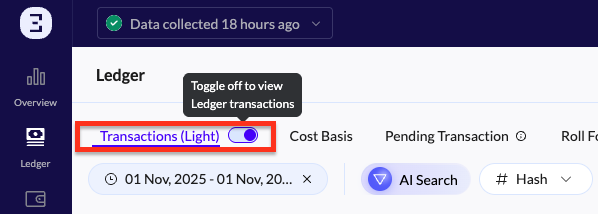
Supports two views toggled via a switch:
Regular Ledger View: Shows full detailed columns for thorough review.
Light Ledger View: Simplified accounting view for quicker tracking.
2. Cost Basis Tab
The Cost Basis page provides a comprehensive overview of cost basis calculations for each asset in your portfolio, calculated according to the methodology selected in the system settings. Each row displays essential values, such as fair market value, total inventory, cumulative asset cost, and realized or unrealized gains.
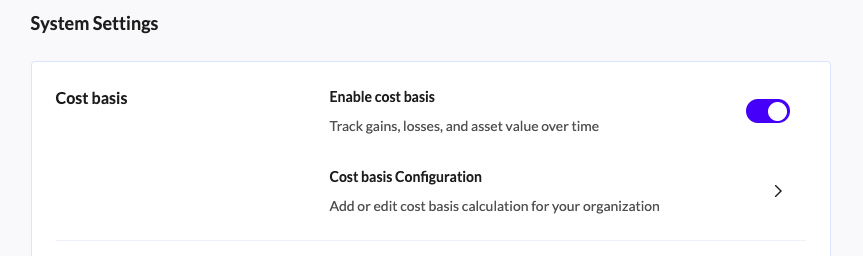
If you change the cost basis method, the system will recalculate the values of cumulative cost, inventory, and realized/unrealized gains for each asset based on the newly selected methodology.Visible only if cost basis tracking is enabled in organization settings.
Profile --> System control --> System settings: Cost basis
(See the Basic Setup guide for more information)
3. Pending Transactions Tab
Lists transactions pending data collection or processing.
Allows users to manually trigger data updates.
4. Roll Forward Tab
Enables creation of customizable roll-forward tables for time-based asset movement and cost basis analysis.
Accessed via the Actions menu --> Insert data table.
Select data range
Name the report table
Select Asset classes
Choose the fields and details you want to include in the report
Export Ledger Report
Use the top button to export your report. You can export ledger reports with the currently applied filters. When clicked, a list of ledger report options will appear, and other report types can also be selected if needed. For more details, refer to the Reports section.