
Tags & Groups
Overview
TRES Finance provides three distinct labeling systems to help you categorize your data. While they all serve the purpose of organization, they apply to different parts of the platform and use specific terminology:
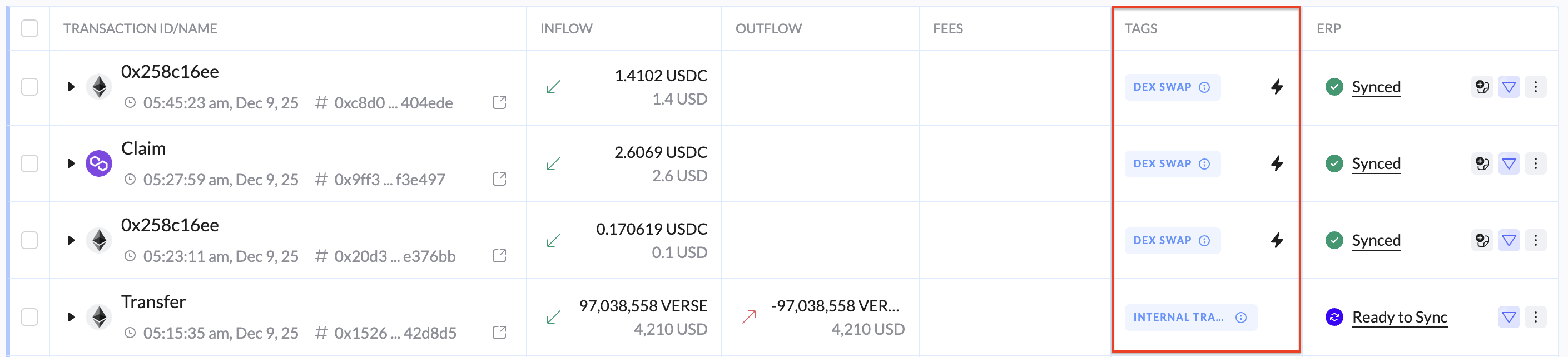
Tags: Applied exclusively to Transactions in the Ledger.
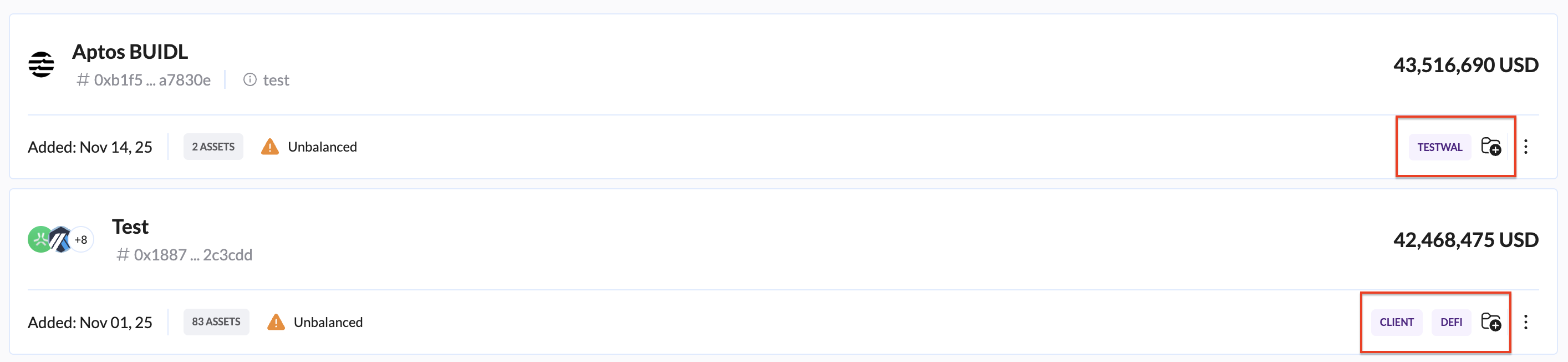
Wallet Groups: Applied to Wallets to organize your accounts.
Contact Groups: Applied to Contacts to organize your external counterparties.
1. Transaction Tags ("Tags")
Tags are labels applied specifically to individual transaction lines in your Ledger. They are used to describe the nature or purpose of a financial event.
Primary Use: Accounting categorization, project tracking, and expense classification.
Examples:
GAS_FEES,AIRDROP,SALARY,PROJECT_ALPHA,MARKETING_SPEND.Where to find them: On the Ledger page or within Transaction Details.
How to Apply Tags:
Automated Tagging: You can use Automations to apply tags instantly based on logic.
Example: "If a transaction comes from Wallet Group: Treasury, automatically apply the Tag: INTERNAL_TRANSFER."
Visit the Tags section in the Automations guide for more information.
Manual Tagging:
Navigate to the Ledger page.
Click on a transaction to view details.
In the Tags field, type a new name to create a tag or select an existing one from the dropdown.
2. Wallet Groups
Wallet Groups allow you to bundle multiple wallet addresses together under a single category. This is essential for managing organizations with many accounts (e.g., distinct funds, departments, or operational usages).
Primary Use: Organizing internal infrastructure and filtering reports by department or function.
Examples:
TREASURY_WALLETS,HOT_WALLETS,CUSTODY_ACCOUNTS,DEFI_OPS.Where to find them: On the Accounts page.
How to Manage Wallet Groups
Navigate to the Accounts page.
Select the specific wallets you want to group.
Choose the "Add to Group" option.
Create a new group name or select an existing one.
3. Contact Groups
Contact Groups allow you to categorize the external addresses (counterparties) found in your Address Book. This helps distinguish between different types of relationships.
Primary Use: identifying vendor types, employee lists, or investor cohorts.
Examples:
VENDORS_US,EMPLOYEES,INVESTORS_SEED,KYC_APPROVED.Where to find them: In the Contacts / Address Book section.
How to Manage Contact Groups
Navigate to your Contacts list.
Select the specific contacts.
Choose the "Add to Group" option.
Assign them to a specific category (e.g., "Contractors").

Using Tags & Groups Together (Best Practices)
The power of TRES lies in combining Groups (the "Who") with Tags (the "What") using the Automations engine.
Scenario: Automating Project Expenses
You want to track all marketing spend without manually reviewing every transaction.
Setup Groups:
Create a Wallet Group called
Marketing Walletscontaining your team's operational wallets.Create a Contact Group called
Ad Networkscontaining addresses for Google Ads, Facebook, etc.
Create Automation:
Trigger (When): Transaction source is Wallet Group: Marketing Wallets AND Destination is Contact Group: Ad Networks.
Action (Then): Set Tag to
MARKETING_EXPENSE.
Reporting & Filtering
Filter by Group: In the Ledger, filter by "Wallet Group" to see only transactions belonging to the
Marketing Wallets.Filter by Tag: Filter by the Tag
MARKETING_EXPENSEto see the total spend, regardless of which wallet it came from.