
TRES - Quickbooks / Xero (AP - AR) - Guide
The Accounts Payable and Accounts Receivable (A/P - A/R) feature simplifies the process of syncing transactions between Tres and accounting platforms like QuickBooks and Xero. Previously, syncing transactions to these platforms required manual journal entries. With the new A/P - A/R feature, you can now effortlessly close bills and invoices paid using cryptocurrencies.
Where to Find Bills / Invoices and Match them to Transactions?
The Ledger Tab is where you will be able to select transactions and match them to Invoices / Bills.
Ledger Tab
In the ledger under each transaction, there will be a dropdown where you can toggle between “Journal Entries” and “AP/AR”.
After choosing AP/AR from the drop-down you will need to select the invoice that you want to match to the transaction
First you must choose the customer / vendor depending on if you are receiving a payment or making one.
Next, select the specific invoice / bill you want to match the transaction to.
Then you need to make sure the fiat value is populated and select the asset account from which the payment is being made or where the income is going.
Lastly, save and close.

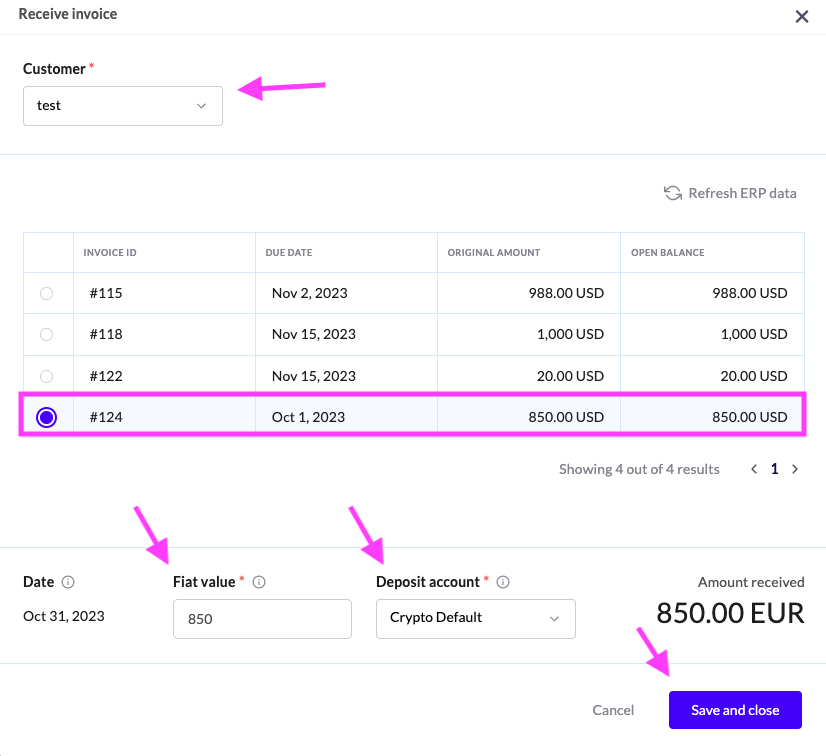
At this point, the Transaction has been linked to the invoice and just needs to be synced to Quickbooks/Xero.
You’ll need to click the “ERP” button in the transaction and then click “Sync Now”
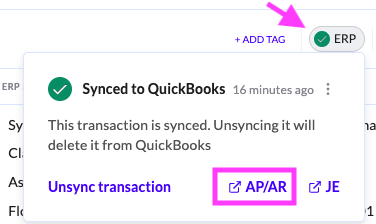
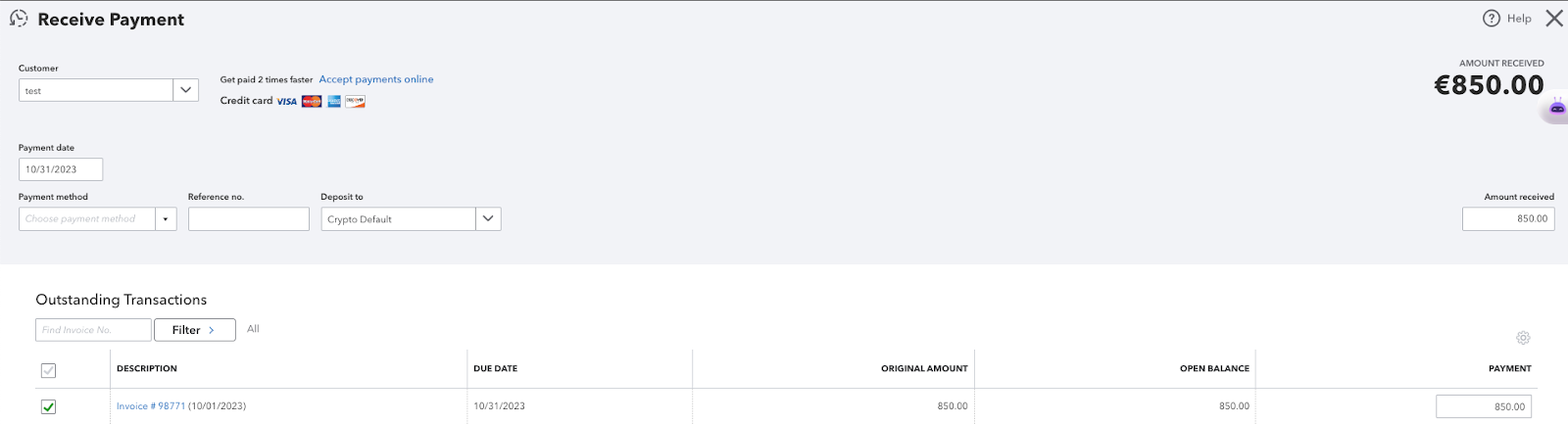
By now the icon near the ERP button turns into a green check mark and once you click on it you may select the AP/AR button to be directed to the invoice within Quickbooks/Xero.
Once the transaction is synced the Invoice or Bill will be closed in Quickbooks/Xero.

The Integrations Tab is where you can view all your Bills / Invoices in one place.
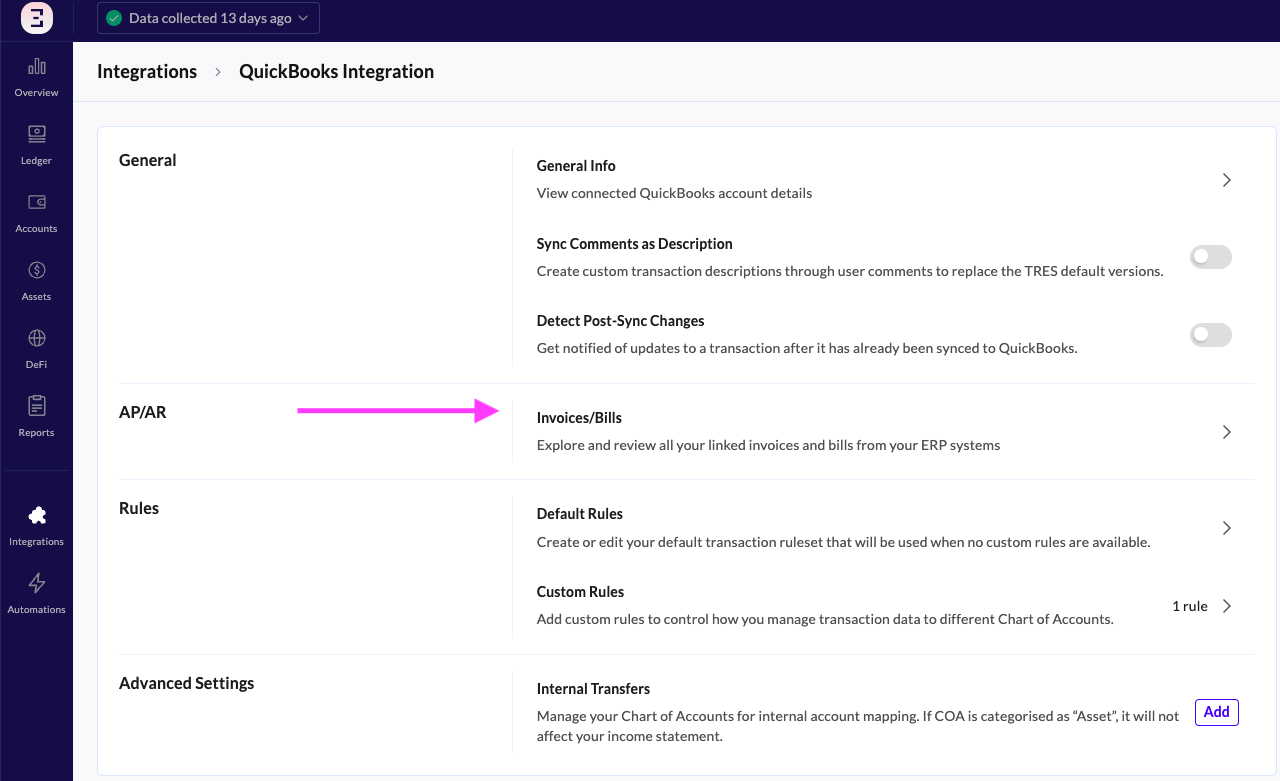
In this page you can view all Invoices / Bills which have been uploaded to Tres.
This page also provides the following details
Name of Customer / Vendor
Amount of Invoice
Amount left to be paid
A link to the Invoice / Bill in Quickbooks/Xero
And a direct link to the transaction in Tres which is being used to close the invoice / Bill