
Accounting Workflow: Internal Transfers
TRES Finance simplifies the handling of Internal Transfers across your accounts, ensuring accurate identification allowing seamless ERP synchronization.
1. Identifying and Linking Internal Transfers
The first step in managing Internal Transfers is accurate identification — and TRES handles this automatically. Our system detects internal movements between your registered wallets and reflects them correctly in your financial calculations. The TRES algorithm uses criteria including timestamp, asset, and amount to automatically link internal transfers. However, like any system, TRES is not always perfect.
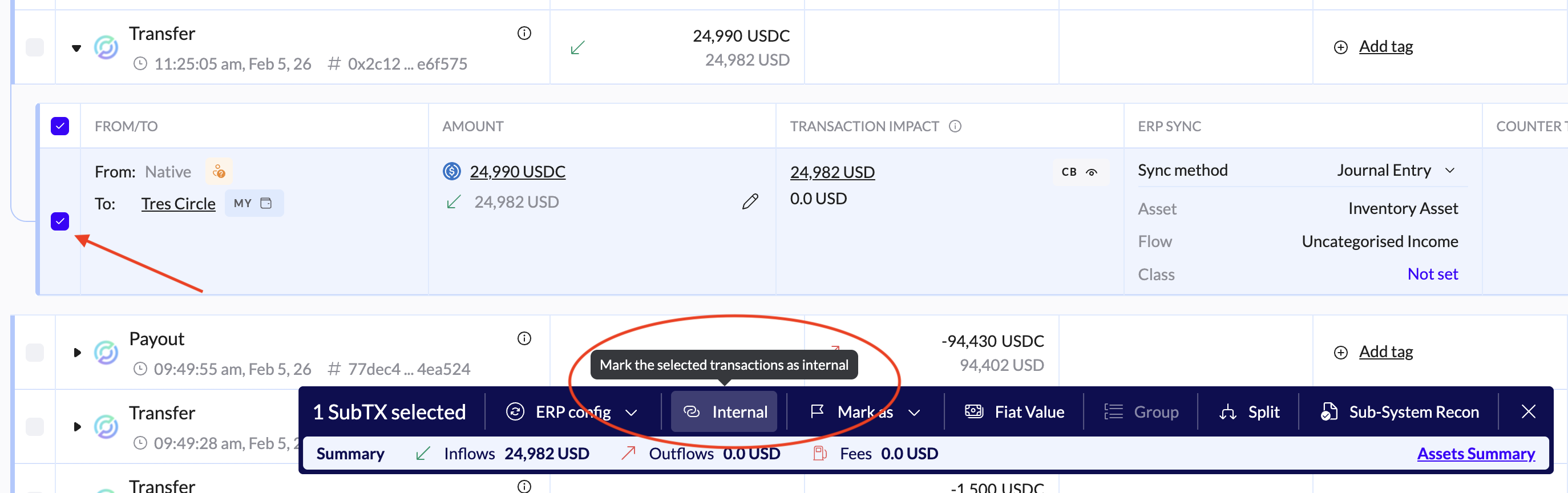
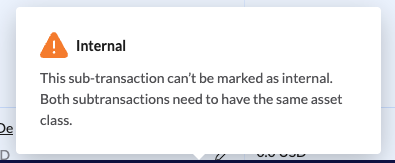
What if my Internal Transfers are not recognized? You can easily link two transactions as internal. Select two sub-transactions and click Internal on the pop-up menu at the bottom of your screen. If the button is greyed out, it may be because the assets are not the same class or the amounts are too far apart. Remember, an Internal Transfer should always be an outflow from one internal wallet and a corresponding inflow to another internal wallet. You can also select one sub-transaction, click Internal, and then search for the other side of the transfer by amount, date, asset, wallet, hash, or other criteria.
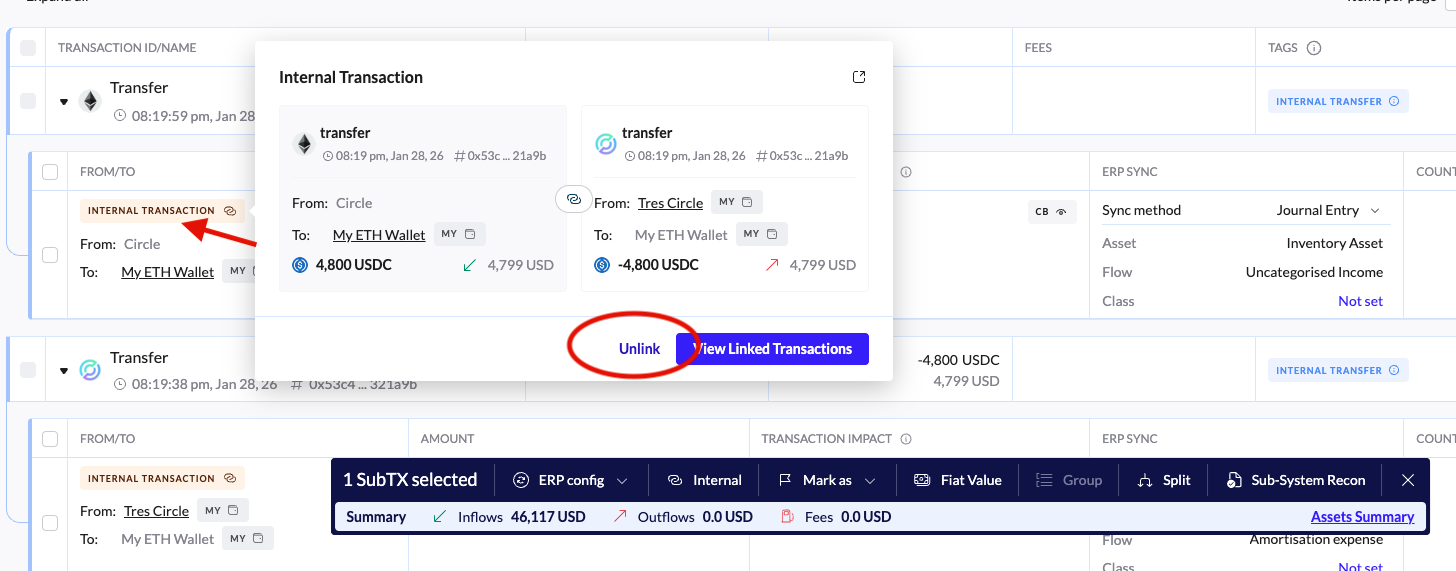
What if my Internal Transfers are mis-categorized? You can unlink two Internal Transfers by hovering over the highlight INTERNAL TRANSACTION in the sub-transaction of one side and clicking Unlink. This will remove the INTERNAL TRANSFER tag and may affect your cost basis.
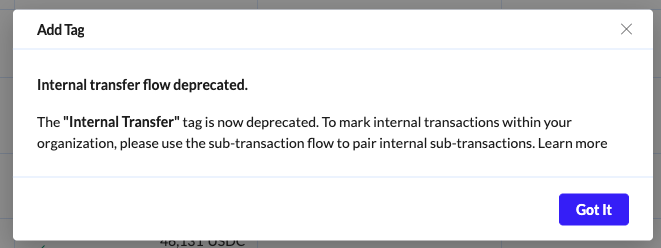
Users cannot set the INTERNAL TRANSFER manually, as an error will appear. The tag is only set by the system when two sub-transactions are linked. Using a similar tag such as “Internal Transaction,” “Inter-company,” or “Wallet 1 to Wallet 2” does not have the same effect as the system-generated INTERNAL TRANSFER tag. This means that your cost basis will be affected and an outflow may generate a gain or loss.
Customers should regularly review their transactional data to ensure accurate recognition of Internal Transfers.
2. Synchronizing Internal Transfers to Your ERP
We support synchronizing to your ERP two types of Internal Transfer scenarios:
a. Internal Transfers Within the Same Transaction
When Internal Transfers occur within the same transaction hash, they are usually on the same network. In this case, the system generates a two-line journal entry:
Debit to one asset account
Credit to the corresponding asset account
The journal entry will sync the cost basis, not fair value. If you have only one asset account for a token in your Chart of Accounts, it is not necessary to sync these Internal Transfers to your ERP as the net effect is 0. If you have one asset account per each wallet or venue where tokens are held, you do need to sync these Internals to ensure accurate reflection of the movement between your wallets. Note that if you track cost basis inventory on a “per wallet” methodology, TRES will accurately calculate cost basis movements between wallets, regardless of whether you sync the transactions to your ERP.
b. Internal Transfers Across Separate Transactions
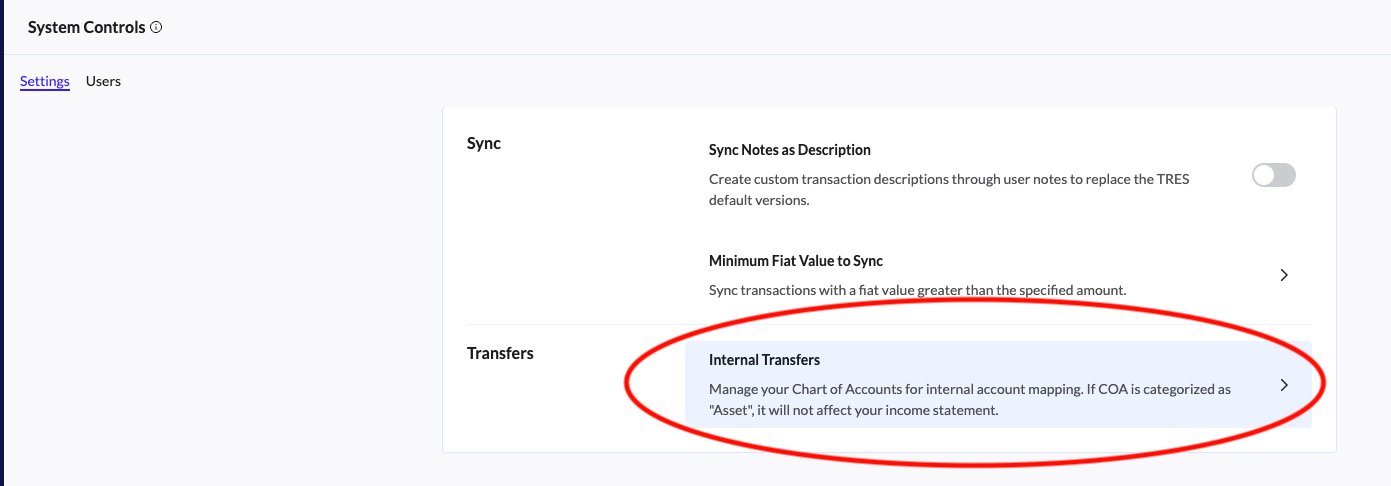
When transfers occur across separate transactions (a movement or bridge from one network to another), you can configure an ERP rule for Internal Transfers in TRES. Navigate to the Settings (Admin users only) and scroll down to Transfers to set-up the default account for Internal Transfers. This rule links to an Internal Transfer buffer or suspense account (a P&L account that you can create in your ERP).
Upon synchronization:
Your asset accounts will have matching debit and credit lines
The buffer account will also reflect balancing debit and credit lines
Again, the cost basis and not the fair value will sync. These entries net to zero and do not impact your balance sheet or profit & loss statements. You may choose to sync or not sync these transactions to your ERP.
c. Not Supported: Internal Transfers Within the Same Wallet
When Internal Transfers occur within the same wallet, you will not be able to sync these transactions to your ERP. This is a common occurrence when assets are moved between different Ethereum chains, for example moving ETH token from Ethereum to Optimism. If material, you can sync only the gas fee portion of the transaction, but note that for the actual token movements you should change your ERP Sync method from Journal Entry to Ignore Transaction. This will not affect the token amount movement from one network to another. However, it will ensure the transactions do not attempt to sync to your ERP and cause a FAILED error.
3. Managing at Scale: Reconciliation & Reporting Tools
Reviewing individual transactions manually isn't scalable. That’s why we provide powerful reports to help you manage Internal Transfers efficiently:
Pre-Sync Journal Report
Shows all journal lines that will be created in your ERP upon synchronization
Useful for validating transactions using filters, pivot tables, or aggregation
You can choose to manually create a single journal entry in your ERP based on this report to reduce clutter and streamline your books
Identification columns: Transaction hash, action, tag, and other key fields
ERP-relevant columns (to the right):
Debit / Credit amounts
Chart of Accounts: name, type, and code
Additional ERP mapping details
Post-Sync Journal Report
Displays all journal lines that have already been synced into your ERP
Helps verify that all transactions were properly synced
Can be cross-referenced with your ERP’s balance sheet and P&L to confirm accuracy
Identification columns: Transaction hash, action, tag, and other key fields
ERP-relevant columns (to the right):
Debit / Credit amounts
Chart of Accounts: name, type, and code
Additional ERP mapping details
Transaction Ledger Report
Displays all transactions in your TRES ledger based on filters
Includes a column for Transaction Activity that will display INTERNAL TRANSFER for any transactions marked with that tag
Can be used to check any transactions without tags or to review transactions of similar amounts that should be marked as Internal Transfers