
Cost Basis Revaluation: A Guide to Accurate Reporting
Overview
In a market as fast-moving as crypto, the price you paid for an asset (your Cost Basis) rarely reflects its actual value just a few weeks later. Revaluation is the process of adjusting the "Book Value" of your holdings to match their current Fair Market Value at the end of a reporting period.
Essentially, it bridges the gap between your historical records and today's market reality. By running a revaluation, you ensure that your financial statements remain accurate, your stakeholders stay informed, and your team has a clear view of unrealized gains and losses, all without needing to move a single token out of your wallet.
Whether you're closing out a month or prepping for a year-end audit, TRES handles this logic seamlessly across FIFO, LIFO, WAC, Spec ID (Maximize Gains/ Losses).
How Cost Basis Revaluation Works in TRES
Step 1: The Setup
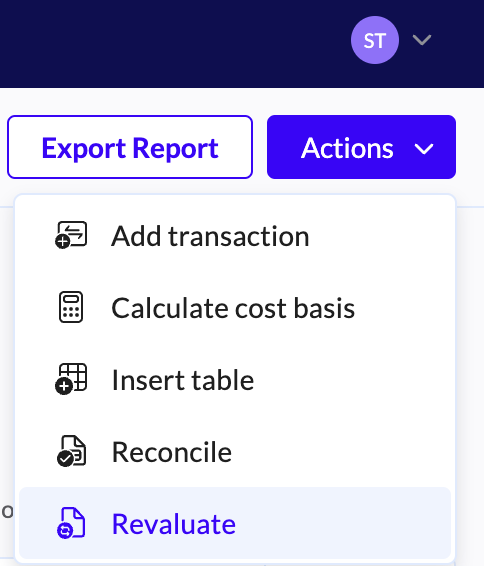
Navigate to your Ledger page, click Actions, and select Revaluate.
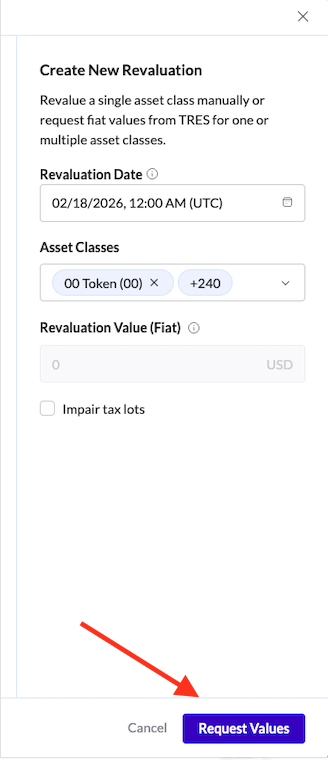
Pick your date: Choose the specific day you want to benchmark (like the last day of the month).
Select the asset: Choose the token(s) you want to update.
Request Values: Instead of entering prices manually, simply click the "Request Values" button. The system will automatically pull the Fair Market Value based on the pricing source configured in your account for that specific date.
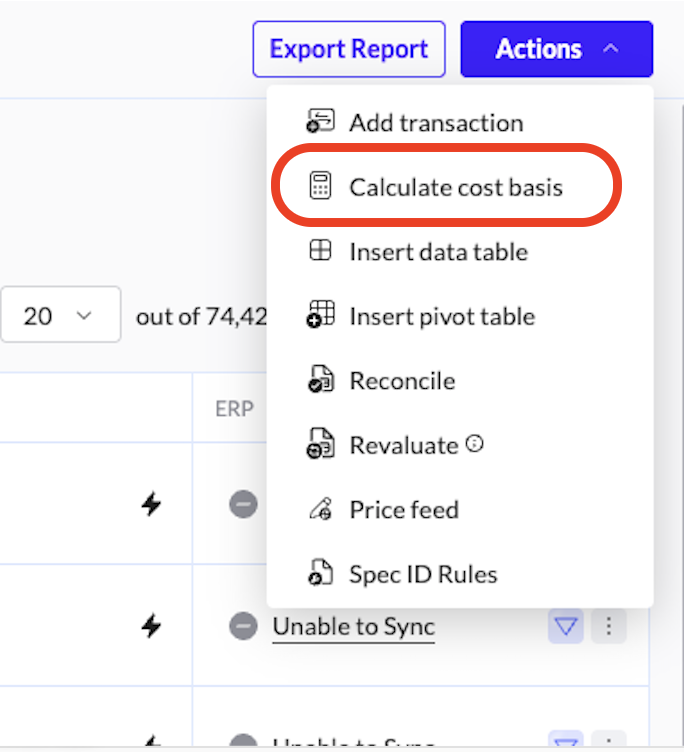
Calculate Cost Basis: Click Add. Then, navigate back to the main Ledger page, click Actions, and select Calculate Cost Basis to apply the new valuation.
Step 2: Granular Review
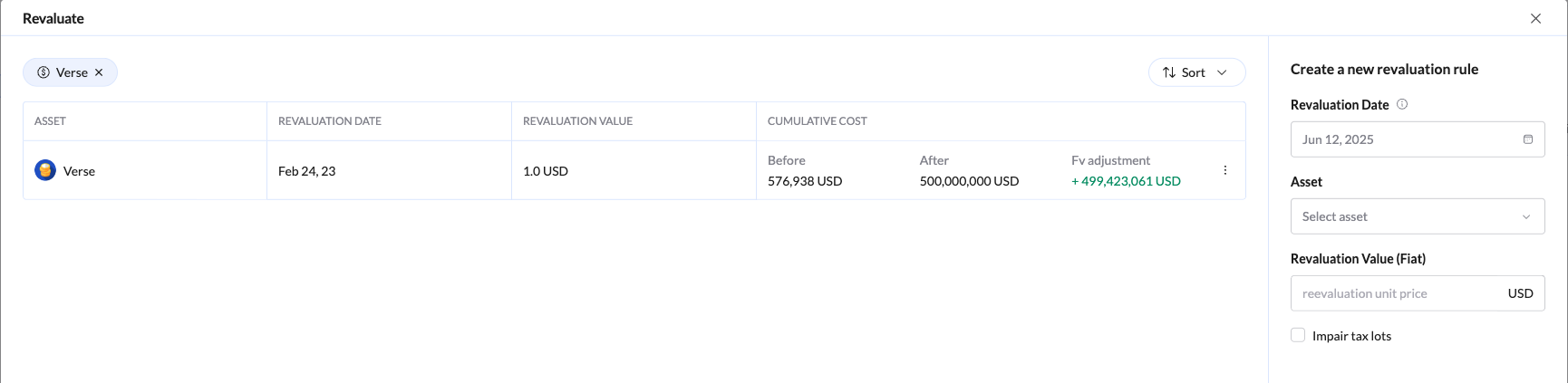
Once the calculation is processed, it’s time to review the impact. In this view, you can see the revaluation broken down per asset and per wallet.
This allows you to verify the "Before and After" book values for every single source in your account. It’s the perfect spot to ensure that the pricing has been applied correctly across your entire infrastructure before the data hits your final reports.
Step 3: Finalize and Sync
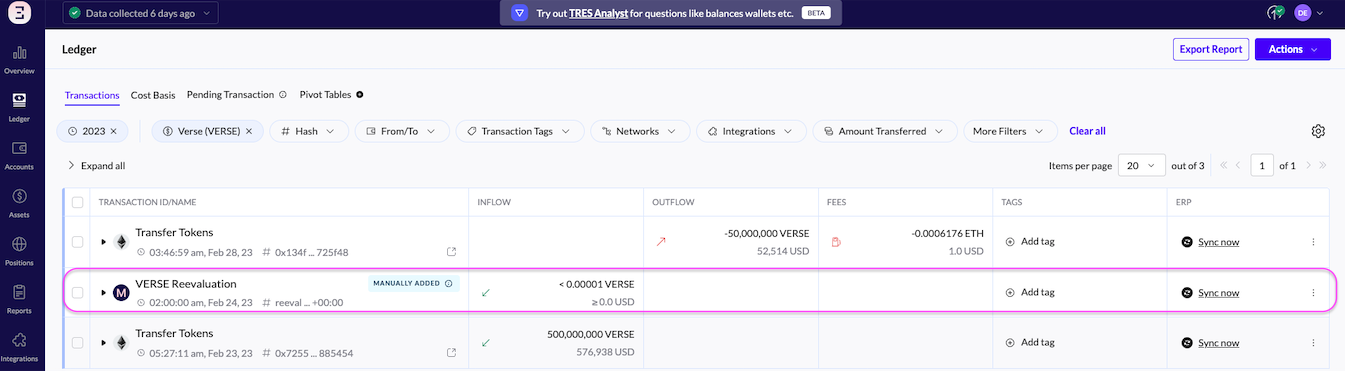
After confirming the numbers, you’ll see the Revaluation transactions appear in your ledger.
A quick tip: You’ll notice the token amount for these transactions is zero. This is perfectly normal! We are only adjusting the value of the assets, not the quantity you hold, so your inventory stays exactly the same.
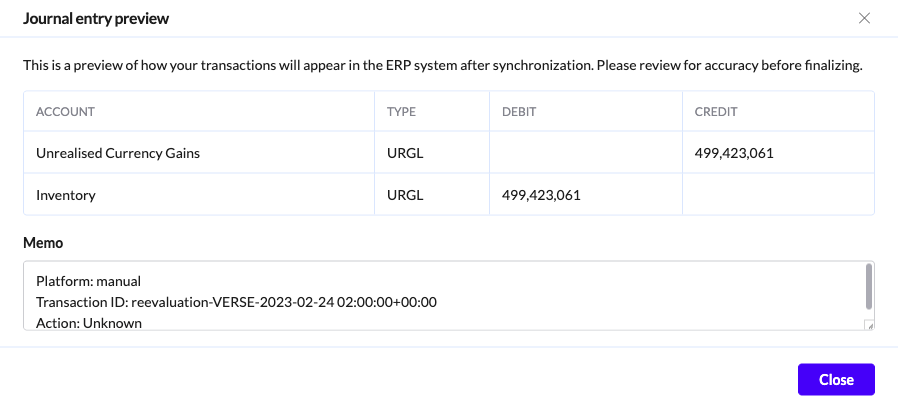
To finish up, click Sync Now and then Open Journal in the top right. This will show you the exact journal entry created for your accounting team.
Step 4: Revaluation Reversal
Note - TRES revaluation module does not reverse the revaluation entries synced to ERP. Instead, the next month revaluation would take into account only the incremental change (i.e FMV on the date of next revaluation less Previous Revalued COGS).
Ready to get started?
Revaluation is a Premium Feature. If you’d like to activate it for your account or have any questions about how it fits into your specific workflow, please reach out to your Account Manager or our support team, we’re here to help!
Still have questions? Submit a request here.