
Using Saved Filters in Automations
Overview
While the Automations page offers many standard conditions (like Platform, Asset, or Wallet), there may be specific, complex scenarios where the default options aren't enough.
Saved Filters allow you to build highly specific queries in the Ledger, save them as a "view," and then use that exact view as a trigger for your Automations. This acts as a powerful bridge, allowing you to automate any set of criteria you can filter for in your Ledger.
Workflow: Creating an Advanced Automation
Step 1: Create the Filter in the Ledger
First, you need to define exactly which transactions you want to target using the Ledger's granular filtering tools.
Navigate to the Ledger page.
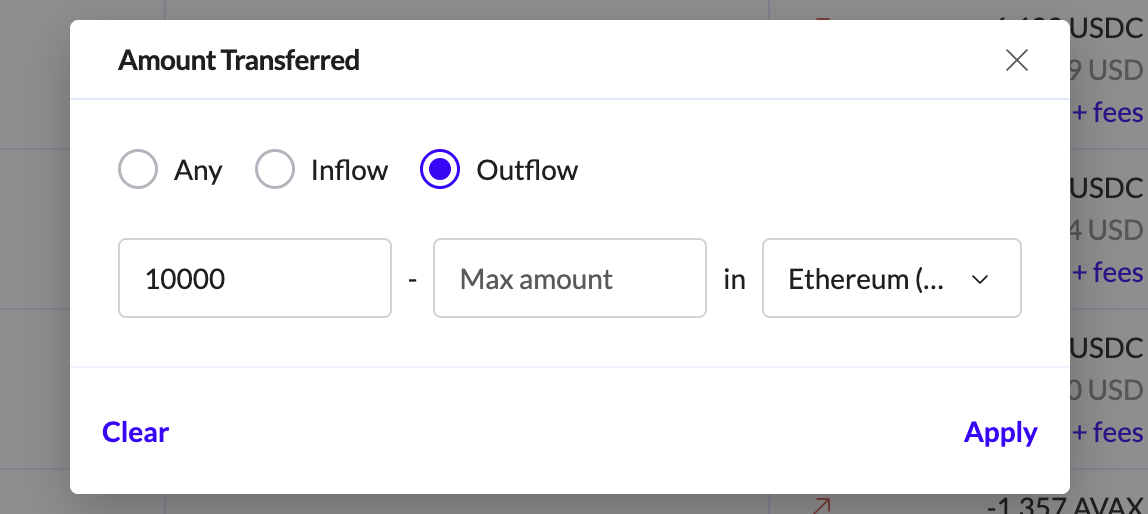
Apply Filters: Use the filter bars to set your exact criteria.
Example: You want to tag transactions that are Outgoing + above $10,000 + on Ethereum. (Standard automations might handle simple AND logic, but Ledger allows for complex combinations).
Verify: Check the list of transactions to ensure the filter is capturing exactly what you expect.
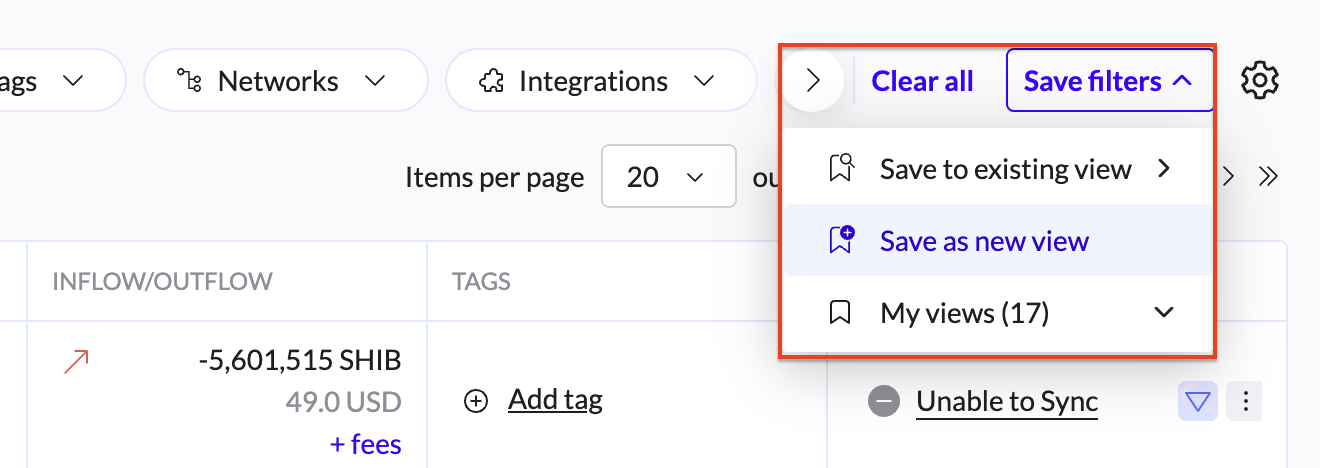
Save View: Click the "Save Filter" button (typically located near the filter bar).
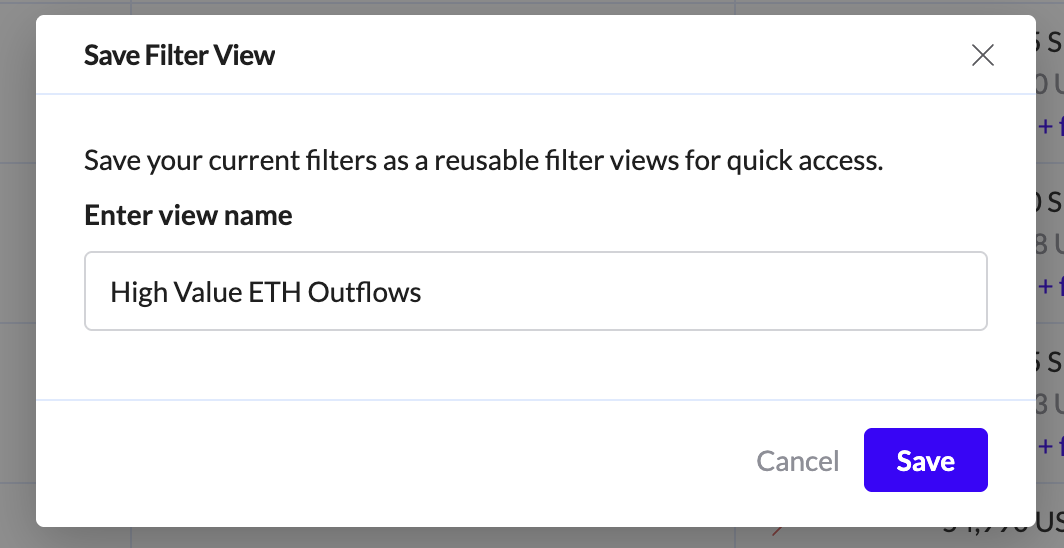
Name the Filter: Give it a clear, descriptive name (e.g.,
High Value ETH Outflows).

Step 2: Use the Saved Filter in Automation
Now that your complex logic is saved, you can import it into the Automation engine.
Navigate to the Automations page.
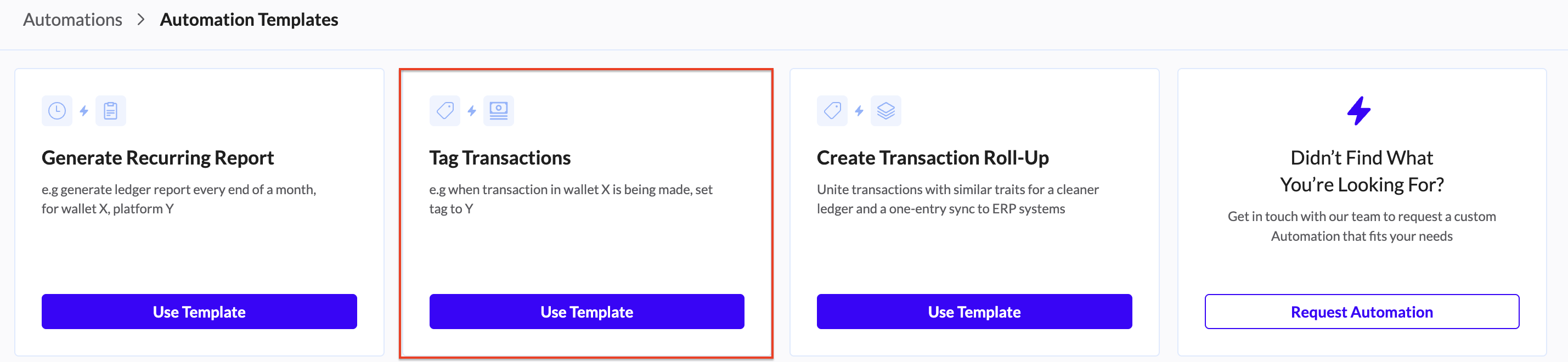
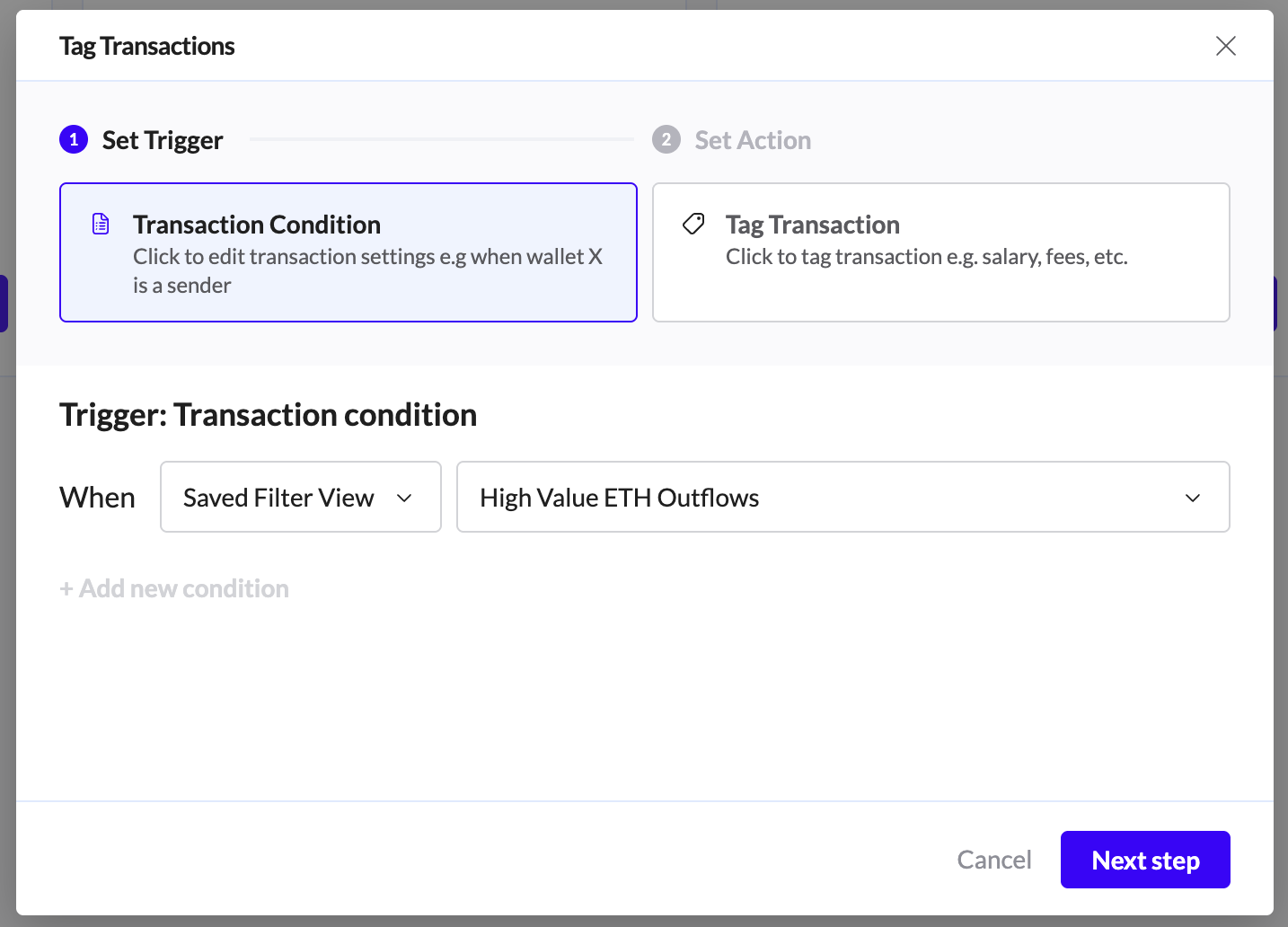
Click "Add Automation" and select "Tag Transactions".
In the Conditions (When) section, select the condition type: Saved filter view.
Select Value: In the dropdown menu, find and select the filter you just created (e.g.,
High Value ETH Outflows).Note: This tells the system "If a new transaction appears that matches the criteria of this saved view, trigger this rule."
Define Action (Then): Set the tag you want to apply (e.g.,
REVIEW_REQUIRED).Click "Create Automation".
Use Case Example
Scenario: You need to tag transactions specifically involving a niche DeFi protocol that identifies itself via complex Method IDs or specific contract interactions that aren't listed in the standard "Platform" dropdown.
In Ledger: Filter by the specific Method ID or Contract Address associated with that protocol.
Save: Save this view as
Protocol X Interactions.In Automations: Create a rule: When Saved filter view is
Protocol X Interactions$\rightarrow$ Then set tag toDEFI_OPS.