ERP Integrations
After successfully connecting an ERP system (like QuickBooks, Xero, or Netsuite), the TRES Finance platform provides a dedicated management interface to monitor sync health, define accounting rules, and manage operational tasks.
General Information & Connection Health
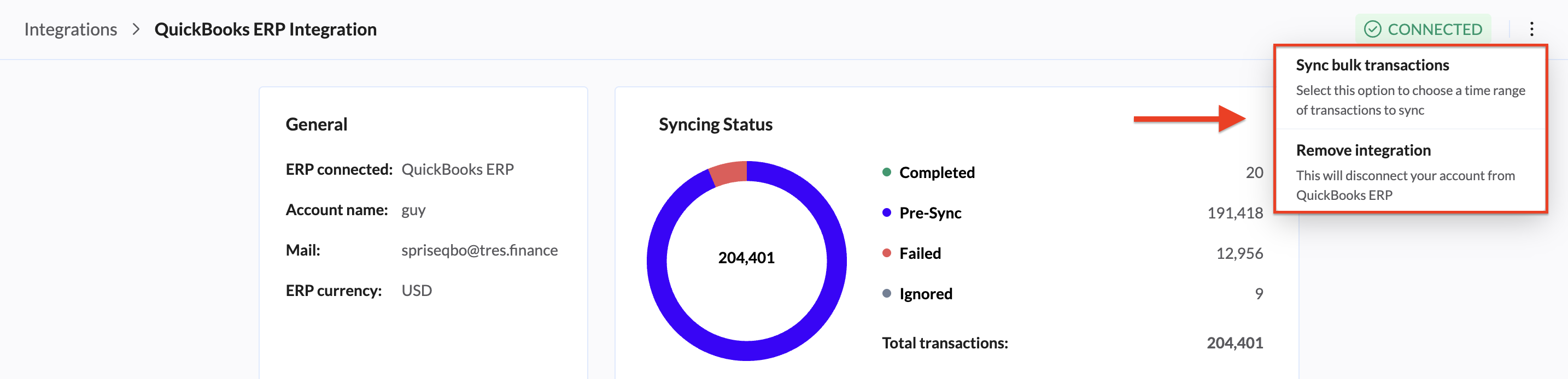
The 'General' and 'Syncing status' sections provide essential connection details and verifies the integration's status.
General:
ERP connected - Confirms the name of the ERP system currently linked to TRES.
Account name - Your organization's specific account name in the ERP system.
Mail - The email address associated with the specific ERP connection.
ERP currency - The base currency configured in your ERP system.
Status - A badge in the header confirming the connection is active.
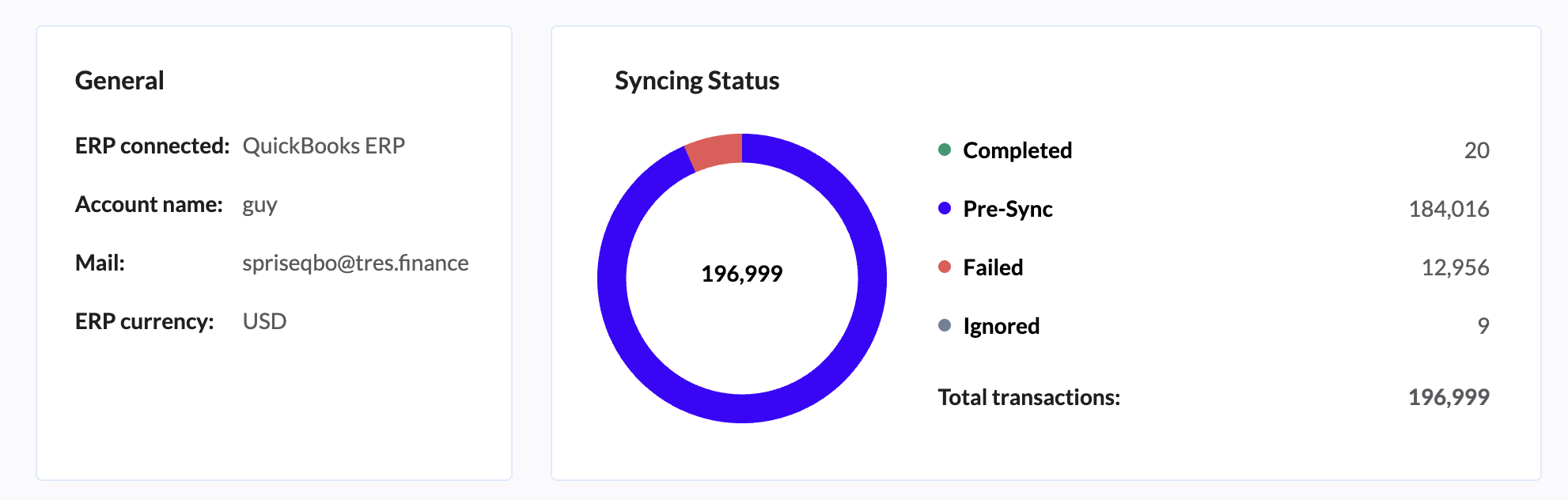
Syncing Status: Monitoring Data Flow:
This section is vital for monitoring the health and volume of your data synchronization. It provides a detailed breakdown of all transactions being managed by the integration.
Total transactions - The total number of transactions managed by the integration.
Completed - Transactions successfully synced to your ERP system.
Pre-Sync - Transactions staged and ready to be synced, awaiting approval or final review.
Failed - Transactions that encountered errors during sync and require immediate attention and investigation.
Ignored - Transactions excluded from sync based on custom rules or system settings.
Configuration Section
These three sections are the primary control points for customizing how your crypto data is handled by the ERP integration.
Rules:
The Rules section allows you to manage how transaction data is mapped to your Chart of Accounts (COA).
Purpose: To add default and custom rules to control the automatic categorization of transaction data.
Custom rules:
The Custom Rule tab initially displays a comprehensive list of all currently configured rules, which users can readily edit or delete.
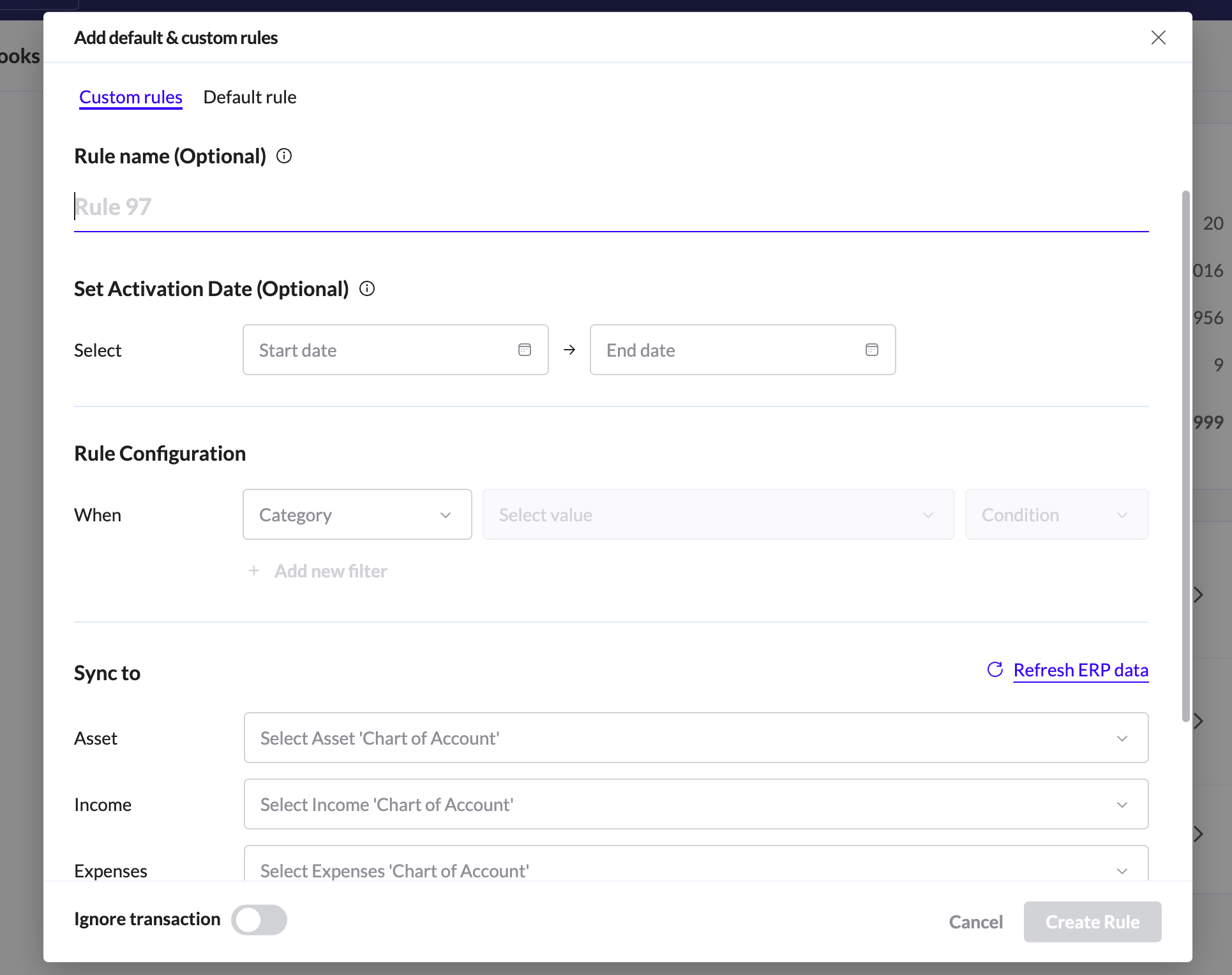
To add a new custom rule, please follow these steps:
Name the custom rule (optional) (defaults to the suggested name if left empty)
Set activation date (optional) - Set when the rule starts, ends, or both. Leave blank if always active.
Set the rule configuration - selects the criteria (or parameter) and the value that will trigger the accounting rule.
Sync to - The "Sync to" section ensures that when a transaction meets the criteria defined in the "Rule configuration" section (e.g., When the Asset is 1INCH), its various financial components are automatically routed to the correct account in your ERP.
Ignore Transaction:
The "Ignore transaction" toggle offers an exception to the rule. If enabled, the transaction that meets the "When" criteria will not be synchronized with the ERP, regardless of the COA mappings defined above.
Use Case: Ignoring transactions is useful for filtering out noise, spam, or specific internal transfers that you do not want to hit your main financial ledger.
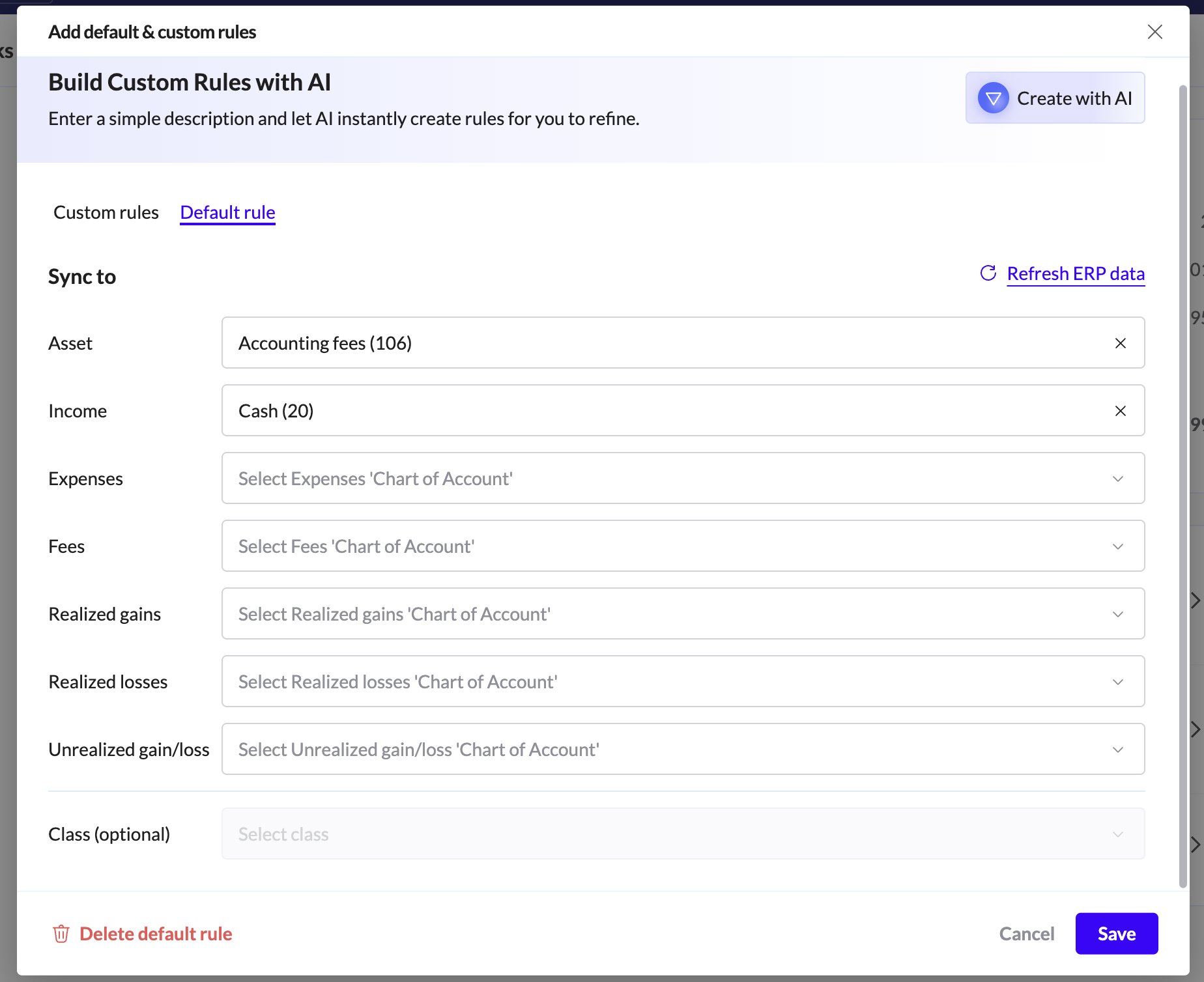
Default rule:
The Default Rule acts as the catch-all rule for your ERP synchronization. Unlike Custom Rules, which only apply when specific criteria are met (e.g., Asset = BTC), the Default Rule is applied to all remaining transactions that have not been categorized by any custom rule.

AP/AR
Please refer to this guide to understand Tres Invoicing
Settings
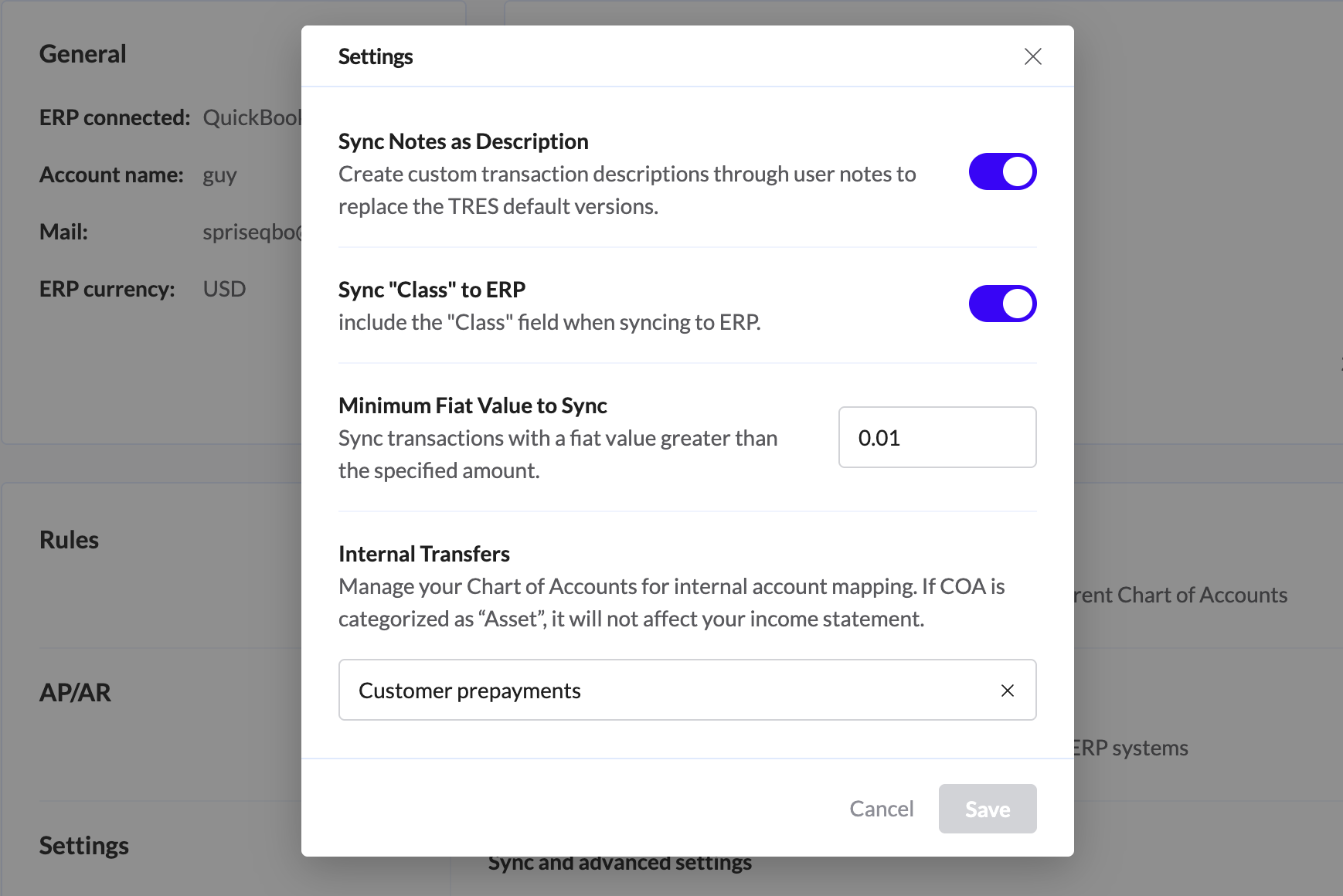
These settings control the level of detail and customization included with the data sent to the ERP:
Setting | Description | Function |
Sync Notes as Description | This toggle controls whether custom transaction descriptions entered by the user (TRES Notes) are used to replace the TRES default transaction descriptions when syncing to the ERP. | Allows users to create clearer, more recognizable entries in their ERP's general ledger, matching internal accounting standards. |
Sync 'Class' to ERP | This toggle controls whether the "Class" field (used for internal reporting or departmental segmentation in your ERP) is included when syncing transactions. | Essential for organizations that use class tracking in their ERP for departmental budgets, project tracking, or granular P&L reporting. |
Minimum Fiat Value to Sync | This field sets a minimum threshold for the value of transactions that TRES will sync to the ERP (set to | Prevents the ERP from being cluttered with noise transactions, such as tiny dust transactions or fractional value transfers, that have a fiat value below the specified amount. |
Internal Transfers | This setting allows you to specify a Chart of Account (COA) that will be used for internal account mapping. | If the COA chosen here is categorized as an "Asset" account (like 'Customer prepayments' in the example), the internal transfers will not affect the income statement (P&L). This is crucial for correctly distinguishing internal fund movements (non-taxable events) from actual income or expenses. |
Page General Actions
Sync bulk transactions:
Purpose: This option allows the user to manually trigger a data synchronization process for a specific, often historical, time range of transactions.
Function: Instead of waiting for the next automated sync cycle (configured in the Settings), the user can select a date range to immediately pull or re-sync transactions into the ERP.
Use Case:
Initial Setup: Syncing all historical transactions that occurred before the integration was first connected.
Reconciliation: Re-syncing a specific period after making major corrections or cost basis adjustments in TRES Finance.
Remove integration:
Purpose: This action terminates the active connection between TRES Finance and the external ERP system (QuickBooks ERP, in this case).
Function: Selecting this option will disconnect your account from the ERP. This immediately stops all ongoing and future automated data synchronization.
Warning: Historical data that was successfully synced will remain in the ERP, but TRES will no longer be able to push new transactions or update the sync status until the integration is reconnected.
Use Case: If you are migrating to a different ERP system, or if you need to temporarily pause all data flow for maintenance or audit purposes.