
Negative Inventory
Negative inventory occurs when there are more tokens leaving than entering a cost basis stack. This means that TRES is trying to calculate the cost basis for an outgoing transaction, but the inventory of that cost basis does not have enough lots from which to draw.
Negative inventory will block Gains/Losses from being calculated and cause ERP sync failures - and it is a critical error to resolve to maintain accurate cost basis calculations. TRES will automatically track cost basis for you, but there are external factors that may occasionally cause calculations to fail.
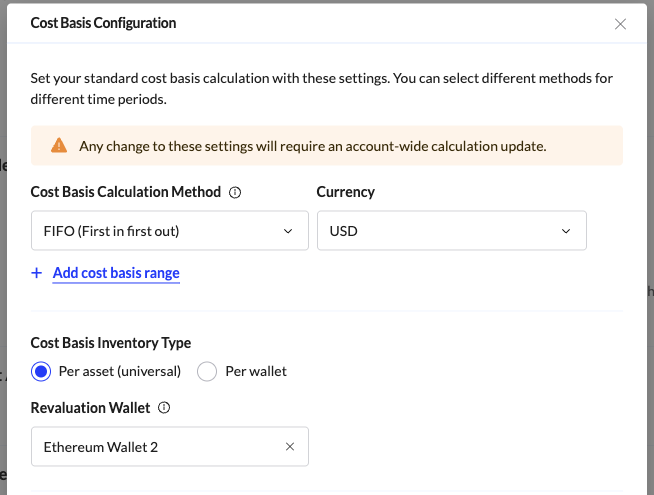
Tip: Check your Cost Basis Inventory Type under System Controls → Cost Basis Configuration. Depending on whether you track cost basis inventory per wallet or at the organization (per asset / universal) level, disposals will draw down from either (1) tax lots in the wallet disposing of the asset only or (2) tax lots across your entire organization.
Common Reasons for Negative Inventory
Understanding the root cause of a negative inventory is the first step to resolving it. Here are a few common issues you can look at to determine the reason for a negative inventory:
1. Missing Inflow Transactions
Whenever there is an outflow in the ledger, TRES will calculate the cost basis depending on your cost basis methodology (FIFO, LIFO, etc.). The calculation will not complete if there is insufficient inventory available, which will result in a negative inventory balance.
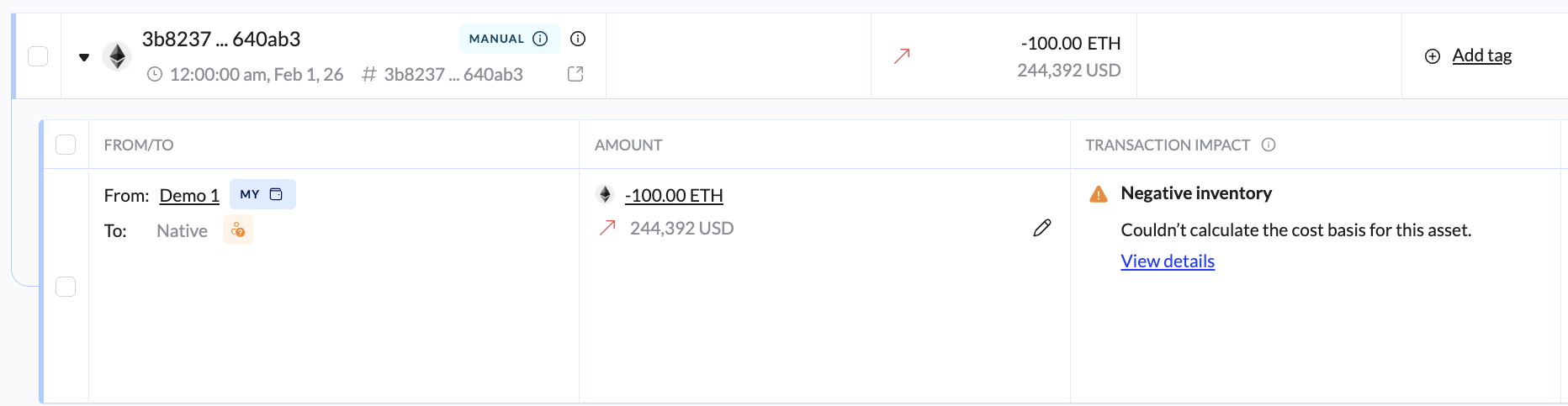
Example: A wallet receives 10 ETH, and TRES captures this. A few days later, that same wallet might send 12 ETH. Since TRES was only able to record 10 ETH of inventory, a withdrawal of 12 ETH would put the cost basis stack in a negative balance of -2 ETH.
2. Missing Fiat Values
If an inflow transaction exists in the ledger but has no fiat price assigned, TRES cannot calculate the Cost Basis of the tax lot based on the FMV at the timestamp of the transaction. During data collection, TRES will automatically fetch pricing from your Pricing Feed selected under System Controls, but if no pricing is available, TRES will be unable to add a fiat value to the transaction(s).
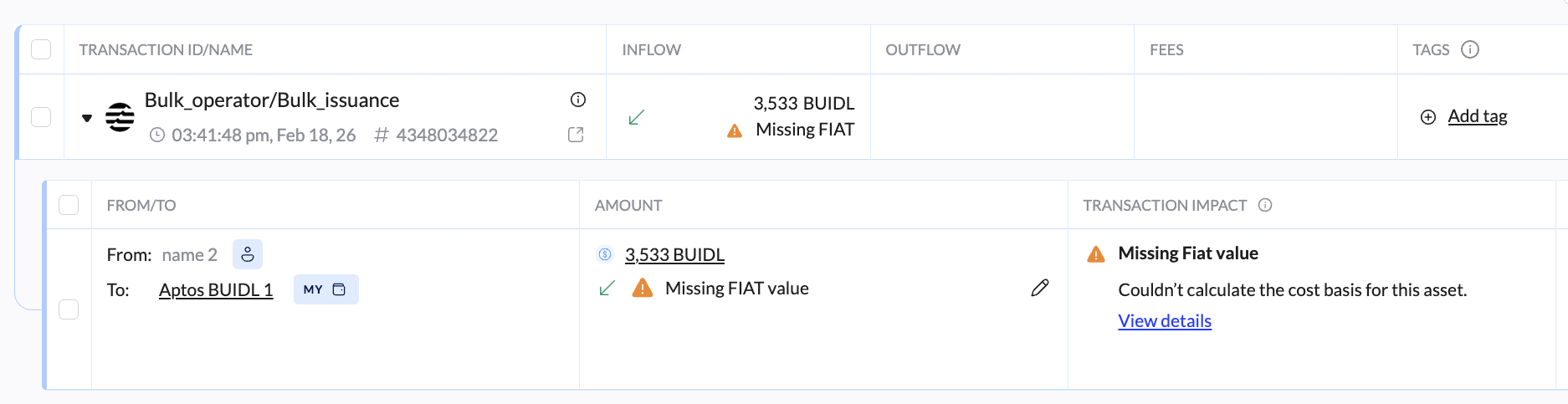
Example: An organization may received 100,000 tokens from a pre-ICO allocation event. Because the token has no market price at the time of the deposit, the inflow transaction recorded in TRES will have no fiat value. A few month later, the token may get listed on a pricing feed such as CoinGecko. Once the organization withdraws that 100,000 tokens, TRES will be able to price the withdrawal but not the original acquisition - causing the inventory to calculate as a negative balance.
3. Mismatched Non-Taxable, Non-Impact Inventory flags
When only one leg of a paired transaction is marked as non-taxable, non-impact inventory, the cost basis stack becomes misaligned. This is a common use case for staking and other DeFi activities.
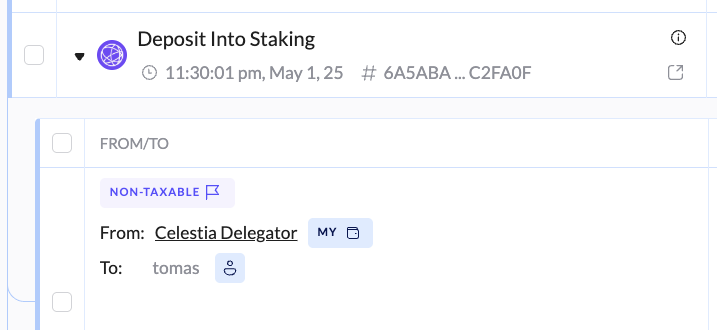
Example: A wallet stakes 100 SOL. The staking lockup (an outflow) is treated as taxable and uses 100 SOL from the cost basis stack. The staking return (an inflow) is marked as non-taxable, non-impact inventory. The token balance of SOL has increased by +100 SOL in the account, but TRES has been told not to record tax lots with that SOL. The cost basis stack would now show as -100 SOL because the outflow consumed inventory but the inflow did not replenish it.
4. Exchange API Limitations
Centralized exchanges often limit how far back their APIs return transaction history. If an account was active before the API can fetch data to send to TRES, earlier inflow transactions will be missing from TRES. This is outside of TRES' control.
Example: An organization connects their OKX exchange account to TRES. OKX's API only serves 90 days of transaction history. If the organization has been active for 2 years, all inflows older than 90 days are missing. Since TRES can see the current balance and recent outflows, they will consume inventory that was never loaded into the cost basis stack in the first place.
4. Short Positions
Engaging in certain types of trading activity that results in short positions can also cause negative inventory. You can update the Cost Basis Configuration settings by clicking Resolve inventory errors by utilizing future inflows. Note that this option should only be used when you have concluded the cause of the negative inventory and it is not due to missing transactions or fiat value (as you would want to correct those issues first). You may want to discuss with your Account Manager if this is the right option for your organization.
How to Identify Negative Inventory
TRES will show you negative inventory issues in a few locations across the platform:
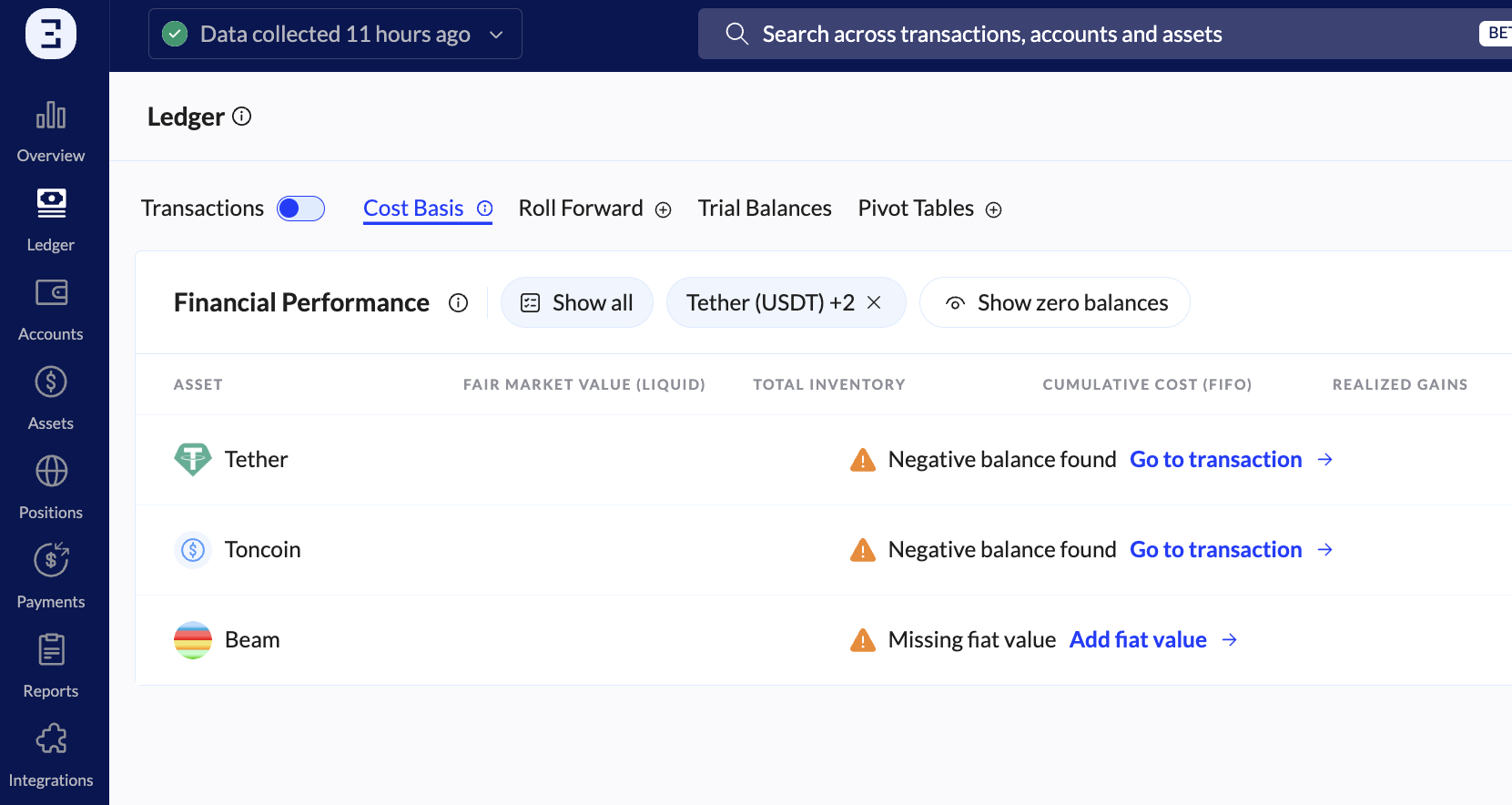
Ledger → Cost Basis: if there is an asset with a Negative Inventory, the cost basis tab will display which asset and which wallet is causing the issue.
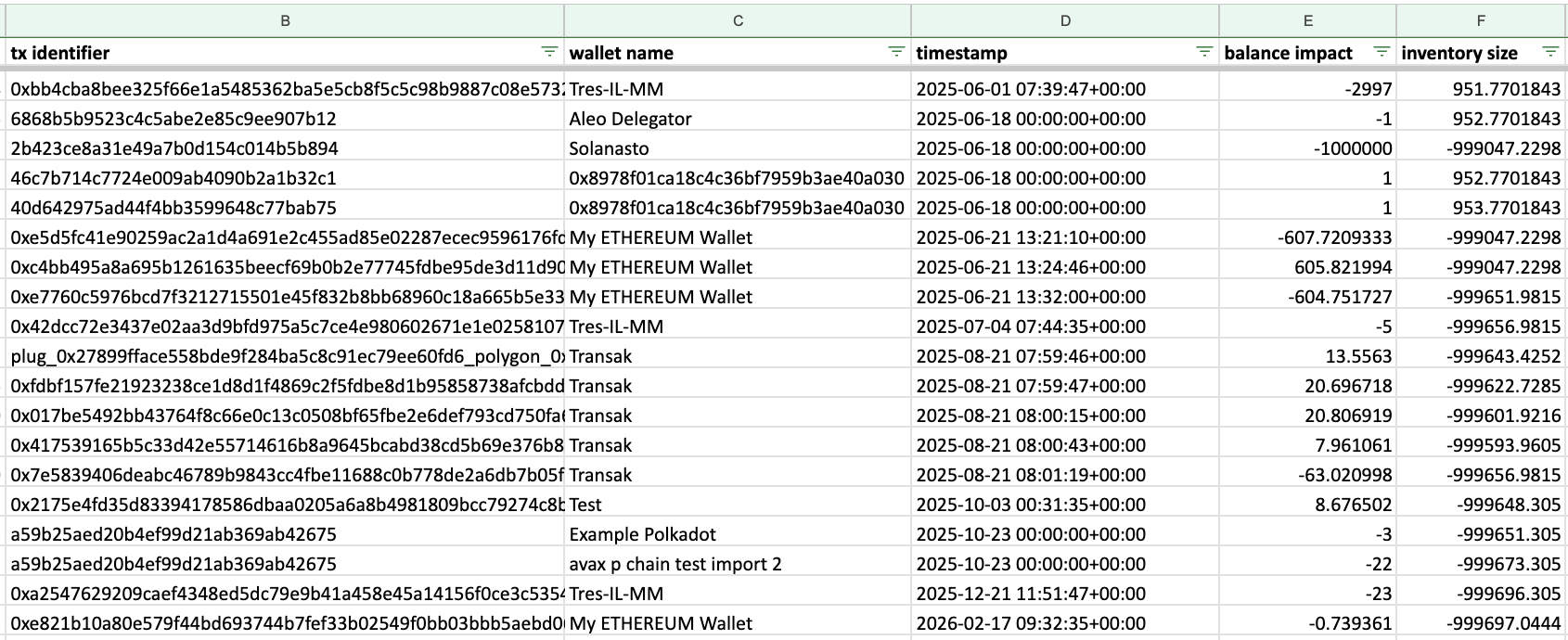
Reports → Cost Basis Inventory report: go to Reports and select the Cost Basis Inventory report. Once opened review the Inventory Size column; any negative values indicate that the inventory has gone negative. The report will show the transactions, wallets, and timestamps where the negative inventory occurred.
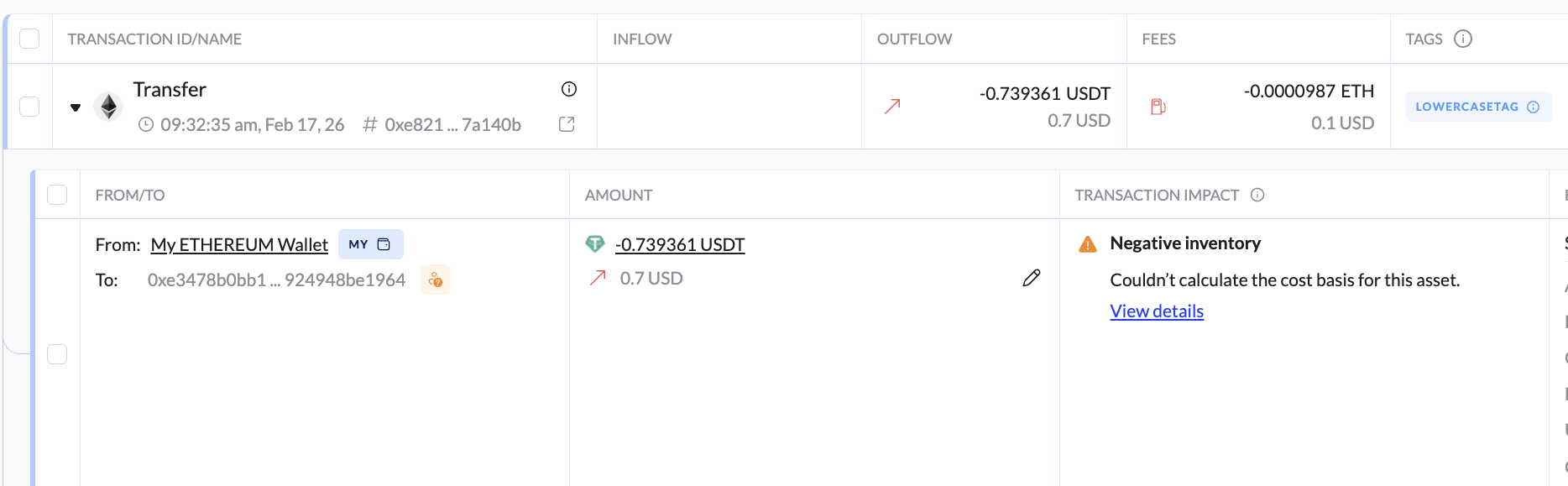
Ledger → Select a Transaction: when viewing a transaction in the ledger, view the "Transaction Impact" column. This column shows data related to your cost basis, gains and losses. If there is a Negative Inventory, it will alert you here with a warning
How to Fix Negative Inventory
The resolution to fixing negative inventory issue depends on the root cause. Here are some steps you can take depending on the issue you are experiencing:
Reconcile a wallet
Start by running reconciliation on the affected wallet to identify any gaps in inflows vs. outflow.
Download an Inventory Report, and review the date or transaction that causes the negative inventory
Use TRES' built-in Reconcile feature to add the missing inflows
TRES will propose a manual transaction to the gap on the specified reporting date. Review the proposed amount and the wallet it will be added to.
Confirm the transaction and click Confirm at the bottom of the panel. This triggers a data collection process.
Once data collection is complete, the manual transactions appear in the Ledger and the cost basis stack will be recalculated.
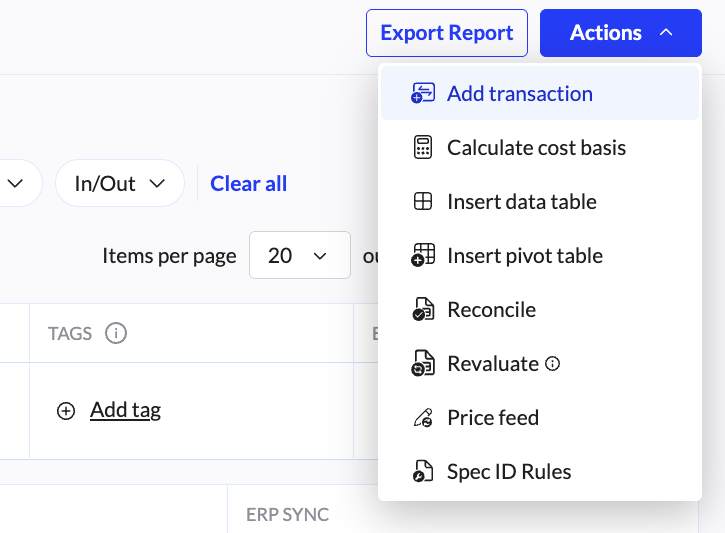
Alternatively, you can simply Add a manual transaction to the respective wallet through the Ledger "Actions"
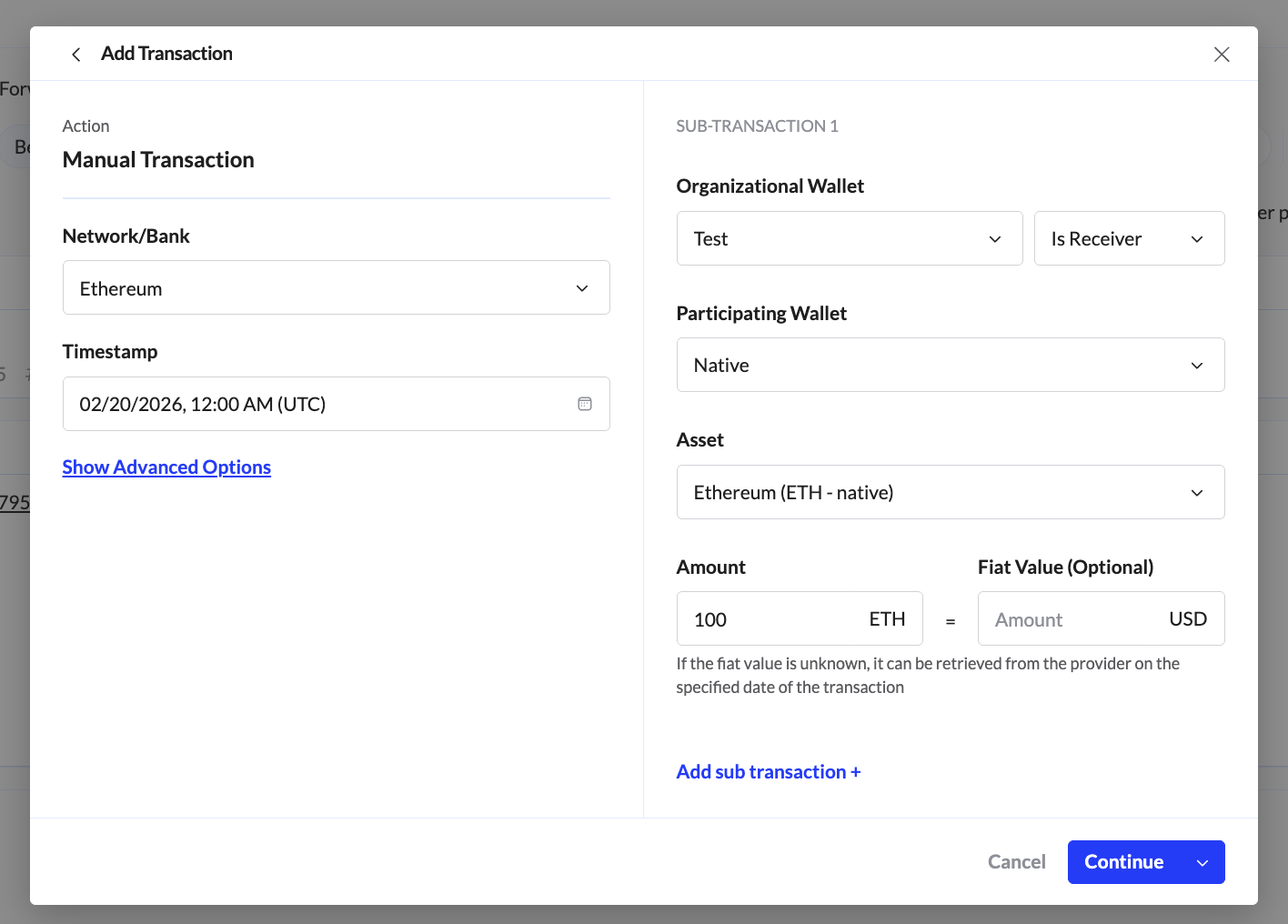
Make sure the manual transaction includes a fiat value. Transactions without fiat values cannot be used for cost basis calculation. You can enter the fair market value at the time of the original inflow. If you are unsure of the correct price, consult your accounting team
Note on stablecoins: if you have a negative inventory error on a stablecoin such as USDC or USDT, you can easily plug with a manual inflow. Review the Cost Basis Inventory report and add an inflow before the first transaction where the balance goes negative. Then, add an outflow of the same amount once you have enough inventory of the asset in the account. Because stablecoins trade at (or very close to $1), you do not need to worry about generating large gains or losses with these plug transactions.
Correct Non-Taxable, Non-Impact Inventory flags
If the negative inventory is caused by mismatched non-taxable flags, correct the flags on the affected sub-transactions. Both staking lockups and staking returns (or similar DeFi activity) must be marked in the same way (non-taxable, non-impact inventory; non-taxable, impact inventory; or unmarked entirely - depending on your preference and accounting treatment).
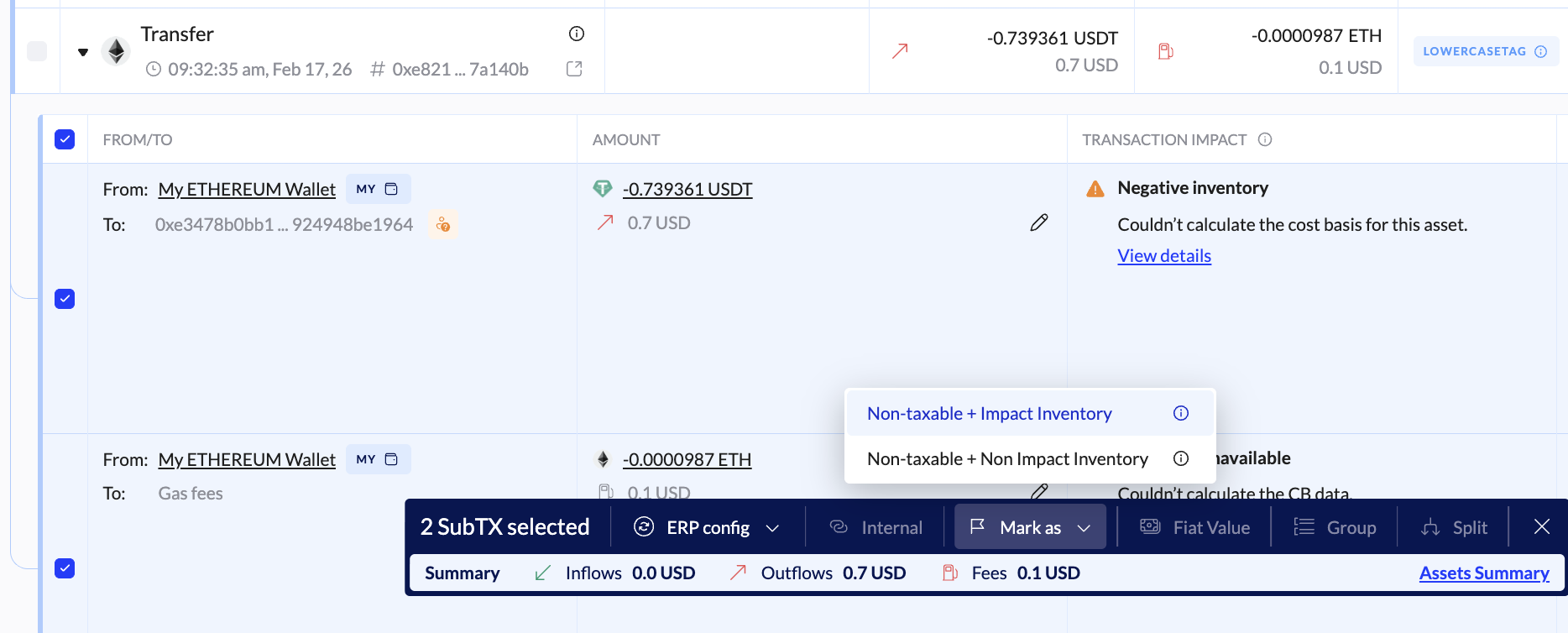
Open your ledger and filter for the affected asset and/or wallet
Locate your staking lockup/return transactions. Click on the transactions to expand and view the sub-transactions.
Ensure both legs of paired transactions have the same non-taxable, non-impact inventory flag on both sub-transactions.
To mark a sub-transaction, select the checkbox, click "Mark As" and choose the applicable flag
Assign Missing Fiat Values
If the cost basis error is caused by missing fiat values for inflow transactions, you need to manually assign pricing so that cost basis can be calculated.
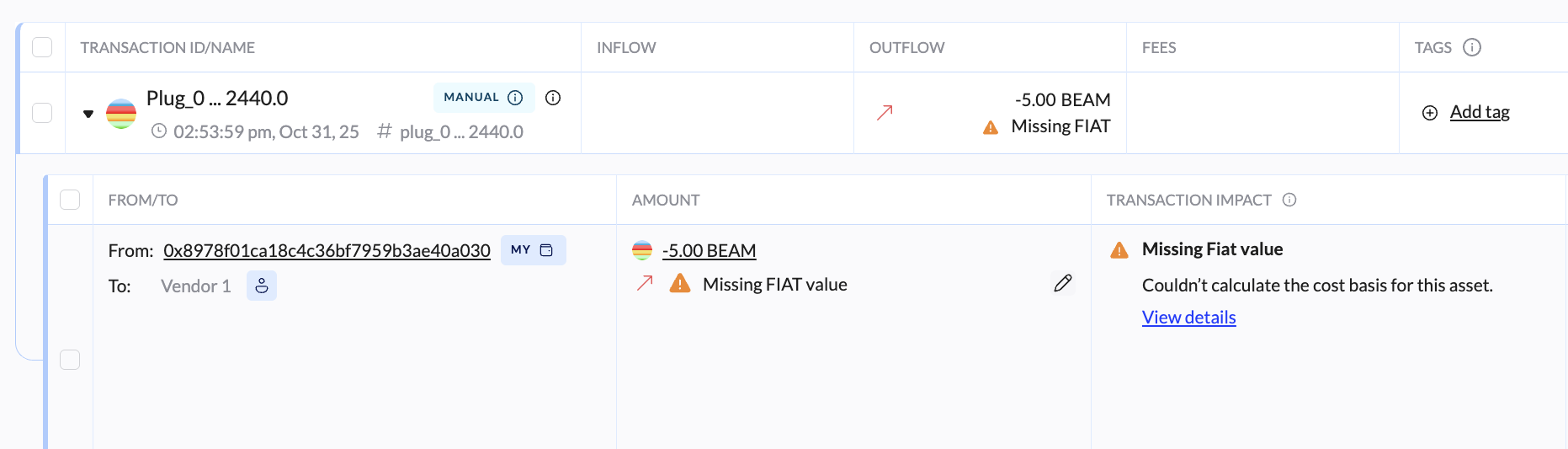
Navigate to Ledger → Cost Basis and review the assets with missing Fiat Value.
Click on the asset, and then "View Transactions".
Expand the transaction, and click on the Pencil Icon in the Amount column
Input your new fiat value for the transaction, and click Apply
For bulk fiat value corrections, contact the TRES Support team. We can assist with applying pricing updates across large sets of transactions.
Import Missing Historical data for APIs
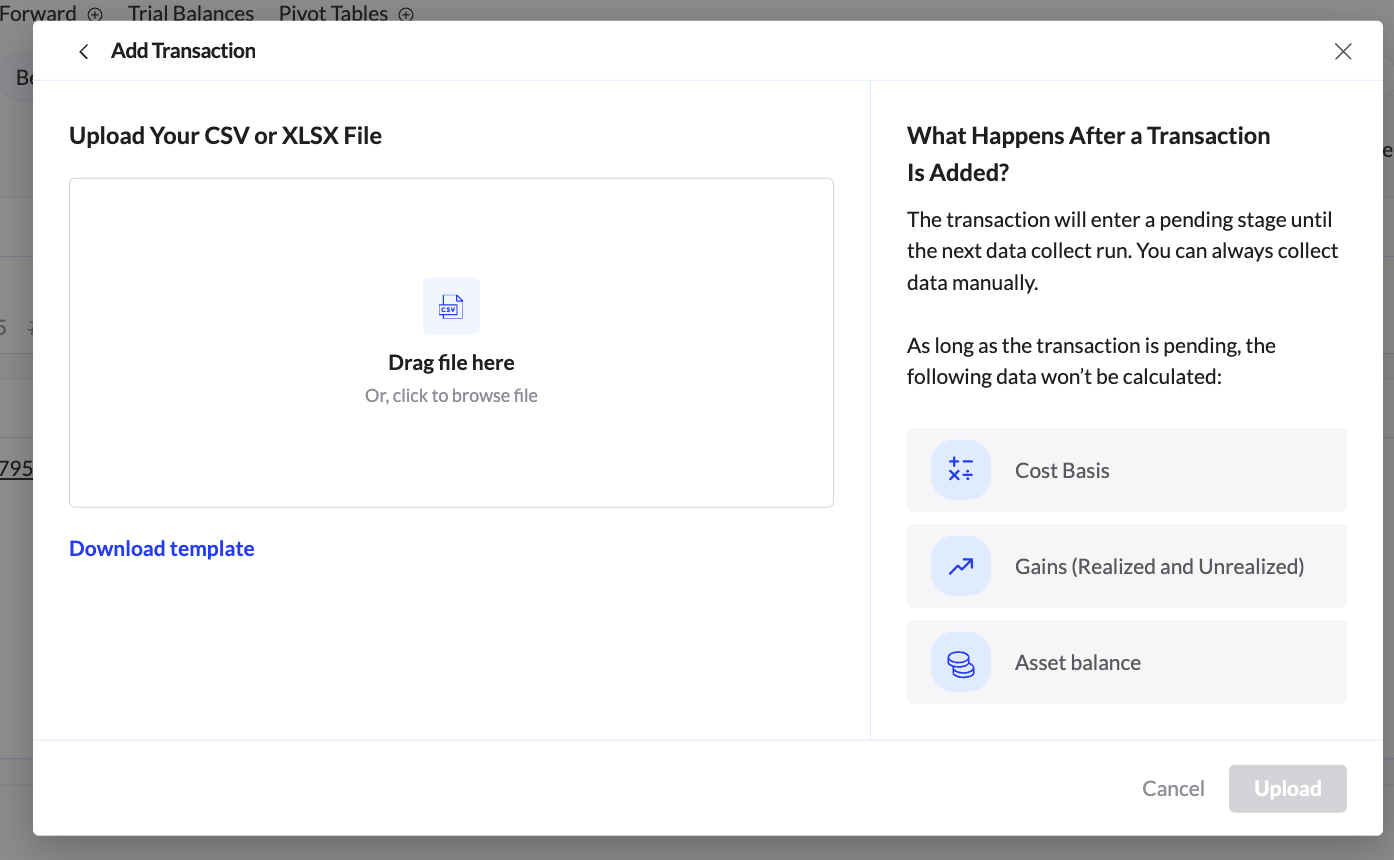
If the negative inventory is caused by an exchange API limitation that prevents TRES from pulling full transaction history, use our CSV importer to fill the gaps.
Go to your Exchange account and locate the full transaction history download option. You may need to reach out to your dedicate Exchange support team to request the download.
Use the Bulk Transactions Upload via CSV feature in TRES to import the missing transactions. Make sure the CSV is in the required format.
After the transaction have finished loading, run your reconciliation again to confirm the gaps are closed. You may need to wait for the cost basis calculations to complete.
After Resolving Negative Inventory
Once you have addresses the root cause, take the following steps to double check that the issue is resolved:
✅ Calculate cost basis for your specific asset (or all assets) by going to Ledger → Actions → Calculate Cost Basis
✅ Verify Reconciliation status under the Ledger → Cost Basis tab
✅ Re-download a Cost Basis Inventory report, and review the Inventory column
✅ If a specific transaction was causing the issue, check the Transaction Impact column in the ledger to ensure it has been updated.
Need further assistance? Contact the TRES Support team at support@tres.finance