
Reports Page
Overview
The Reports page is your central hub for generating, accessing, and analyzing all financial data exports. It provides a comprehensive interface for exporting various types of financial reports into downloadable formats (Excel, CSV) for accounting, compliance, and business intelligence purposes.
All reports are automatically generated, and you can manage, filter, and analyze them directly on this page.
The Reports Table
The main section of the Reports page displays all generated reports in a table format.
Name - The custom or auto-generated name of the report.
Category - The high-level classification of the report's focus (e.g., Assets, Ledger, Positions).
Type/Format - The specific name of the report template (e.g., Balance Trends, Transaction Ledger, ERP Rules).
Created at - The timestamp showing when the report generation was completed.
Status - The current state of the report: Done, Processing, or Failed.
Generate New Report
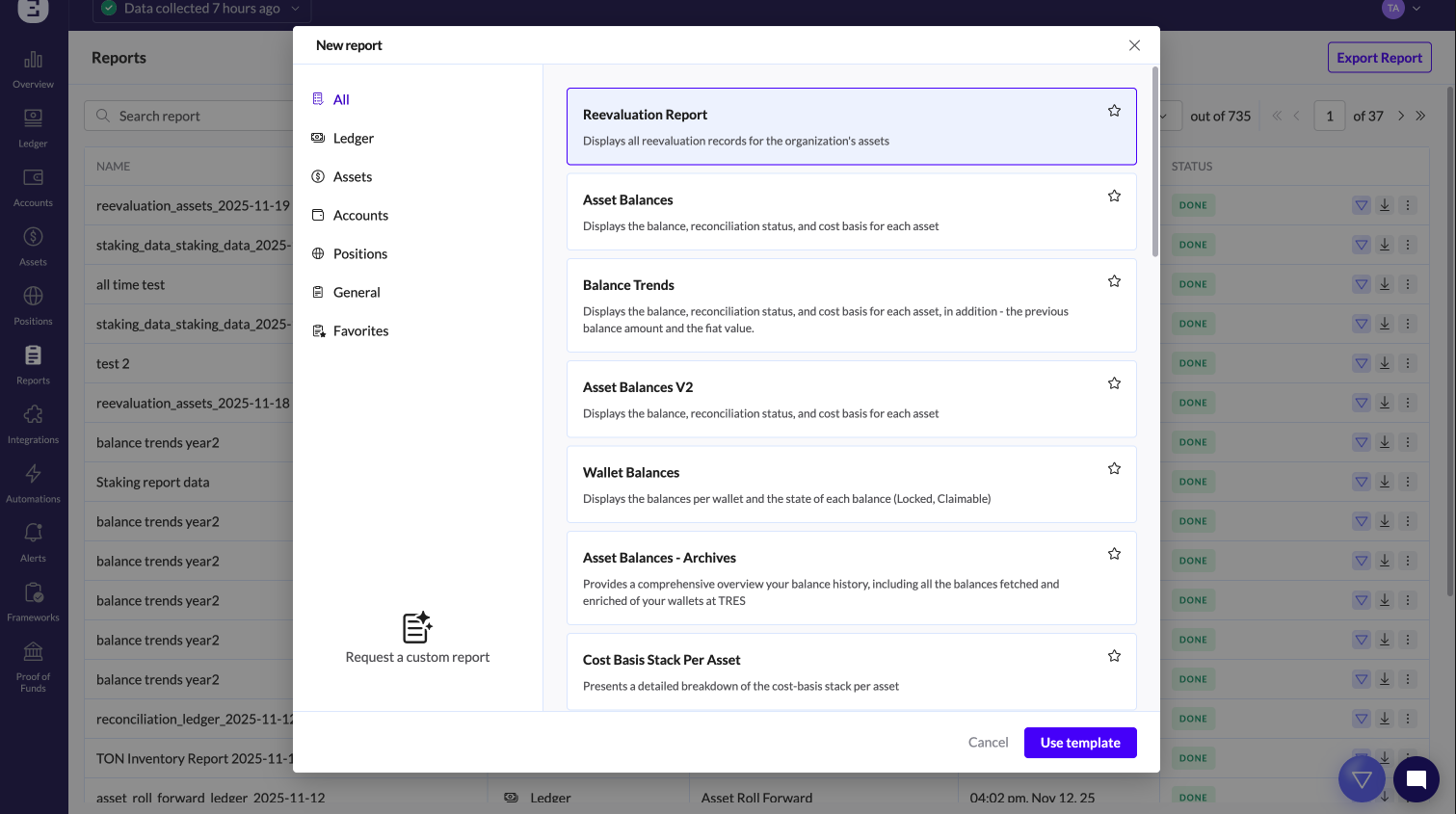
To create a new report, click the Export Report button in the page header.
A modal will display all available report types organized by Category.
Select the desired report type (e.g., Transaction Ledger under Ledger Reports).
Name the report and select the format.
Configure filters, including the date range, wallets, or other specific filters.
Click "Create".
The new report will appear in the table with a "Processing" status, and will change to "Done" when ready for use.
Report Actions
TRES Analyst - Opens the AI-powered analysis tool for instant insights without needing to download the file.
Download Report - Downloads the report file (typically .xlsx or .csv) directly to your computer.
3 Dots menu:
Clone Report - Creates a new report using the exact parameters (filters, date range) of the existing report.
Delete Report - Permanently removes the report from your list. This action cannot be undone.

Key Available Report Types
The "Export Report" button provides access to reports tailored for specific accounting and compliance needs:
Transaction Ledger: Detailed export of all transaction data with fees, tags, and metadata.
ERP Pre-Sync: Formatted transaction data specifically ready for export to external ERP accounting software.
Balance Trends: Historical data on asset values over time for performance tracking.
Cost Basis Stack Per Asset: Detailed cost basis layering for tax calculations.
Cost Basis Error Log: A log of all calculation errors and warnings requiring review.
Asset Balances - Archives: Snapshots of historical asset holdings at specific dates.
Realized Gains & Losses: Detailed breakdown of Cost basis for inflows and calculation of Realized Gains & Losses on Outflows. This report works like the extended raw transactions ledger.