
January
Schedule Recurring Reports From Reports Page
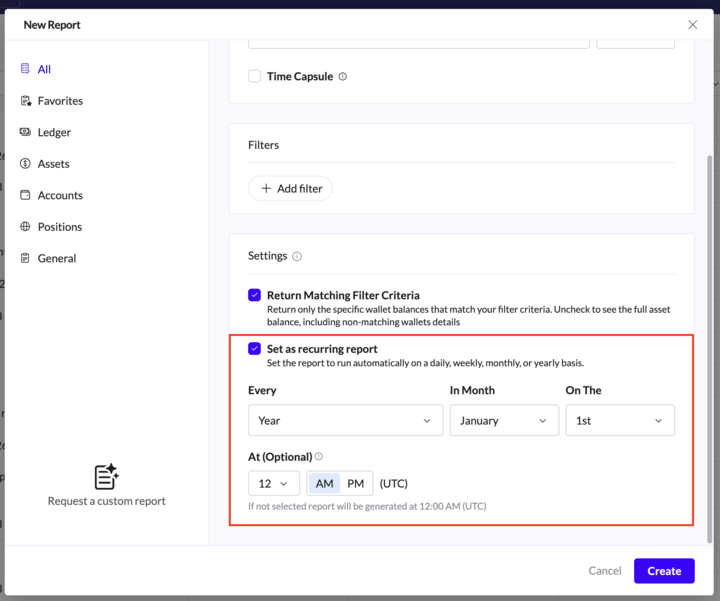
Configure recurring schedules directly within the Report template
You can now configure recurring schedules directly within the Report template settings, with no need to navigate to the Automations page.
For supported templates, check the 'Set as recurring report' box and set the interval.
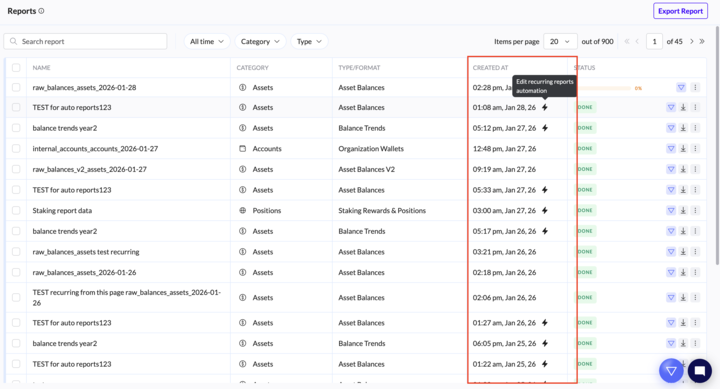
Any report generated by an automation will have a little logo next to it.
Clicking this icon allows you to edit or delete the automation.
Recurrence is only available for supported report types and is disabled if a "Time Capsule" is active.
Multi-transactions - ERP sync preview
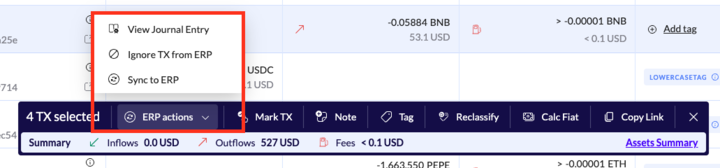
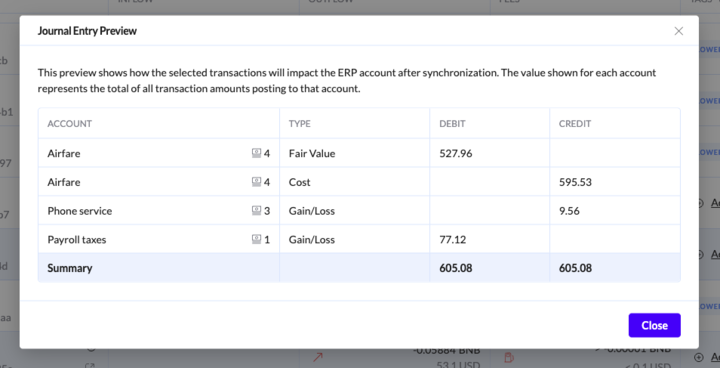
Preview the ERP sync for multiple selected transactions
You can now preview the ERP sync for multiple selected transactions. The preview shows the impacted ERP accounts with aggregated debit and credit amounts, including a total summary, before syncing.
Note that ERP-related actions are now grouped under a single button.
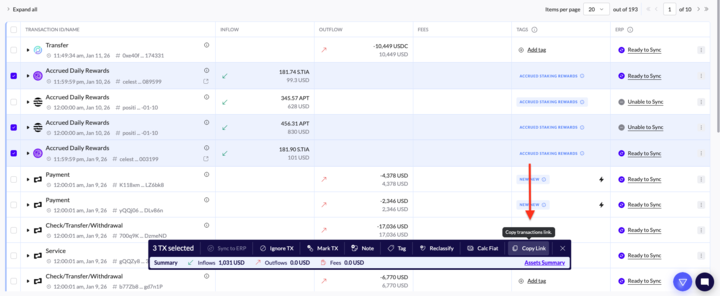
Bulk Action --> Copy Transaction Links:
Copy shareable links from the bulk actions bar
You can now copy shareable links for multiple selected transactions at once.
Auto-fill reconciliation gaps:
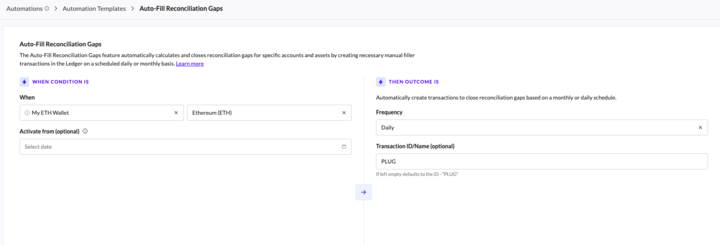
Instead of manually fixing balance discrepancies, users can now schedule a background process to do it for them. The system automatically calculates gaps on a daily or monthly basis and creates the necessary "filler" transactions.
How It Works:
Users can create this new automation type directly from the Automations page.
Mandatory Params: User selects the Account, Asset, and Interval (Daily or Monthly).
The "Activated From" Date:
Defines when the calculation starts. If left empty, it defaults to "From genesis" (calculating from the account's first recorded transaction).
The Output:
The system calculates gaps and creates transactions in the Ledger (default ID: "PLUG") to bring the difference to zero.
We also added a new filter to the Ledger so you can easily find any transactions used to fill reconciliation gaps. (more filters --> "Plug" button)
For all the details, please check the Help Center Article


Ledger update
You can now see a summary of transactions and sub-transactions when selecting items in bulk, making it easier to review batch actions at a glance.
