
Integrating your Exchange Accounts with TRES Finance
To enable Tres Finance to monitor the financial activities in your Exchange account, a set of credentials will need to be created on your Exchange account.
Important
Please Ensure that you set API restrictions to 'Read-only' to maintain security.
Whitelisting an IP address enables network access to relevant IP addresses.
All the above IP addresses must be whitelisted, otherwise, the account connectivity will fail.
For Gate.io, Kraken, Gemini, Bitfinex, ByBit, Deribit, Copper and Bitstamp, please provide the following parameters to our team:
API Key
API Secret
Follow Exchange Specific Instructions:
Binance Exchange
please provide the following parameters to our team:
API Key
API Secret
Related Email Address
KuCoin, OKX and Coinbase Exchange
please provide the following parameters to our team:
API Key
Passphrase
Secret Key
Coinbase Prime
please provide the following parameters to our team:
Access Key
Signing Key
Passphrase
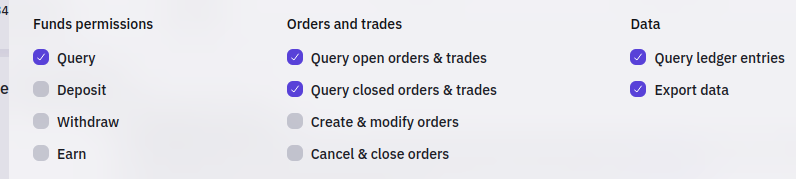
Kraken
For Kraken please ensure these settings are selected:
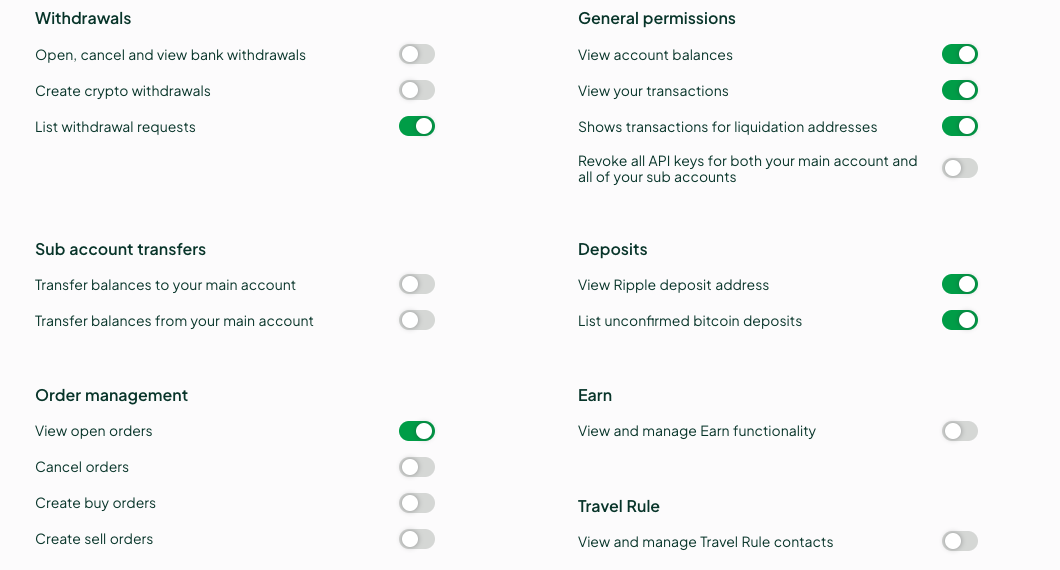
Bitstamp
For Bitstamp please ensure these settings are selected:
When generating your new API key, name it "Tres Finance".
Once you've confirmed the validity of your new API key, make sure to copy and securely store both the API key and the Secret key, along with the email address used to generate them. - You'll need to share this information with the Tres Finance team. You can share through your preferred method (1Password, Email, Slack, Intercom) and encrypt through PGP or through a service like www.wormhole.app.
Ensure that you set API restrictions to 'Read-only' to maintain security.
For IP access restrictions, follow these steps:
Select "Restrict access to trusted IPs only".
Delete the default 0.0.0.0 address.
Add the following IP addresses:
For Binance only:
45.38.187.157 45.38.187.95 45.38.187.173 45.38.187.236 45.147.70.45 45.147.70.51 45.147.70.71 104.251.94.22 104.251.94.212 212.80.200.19 172.190.178.94 172.161.128.154
For ByBit only:
103.175.18.129, 103.240.164.24, 103.240.166.221, 172.190.178.94, 172.161.128.154
For Kucoin only:
103.175.18.129, 103.240.164.24, 103.240.166.221, 172.190.178.94, 172.161.128.154
For Coinbase International only:
110.239.213.19, 172.190.178.94, 172.161.128.154
For Bullish
154.36.70.191/32, 172.190.178.94, 172.161.128.154
For all other exchanges:
44.207.48.224, 34.192.2.121, 172.190.178.94, 172.161.128.154
Connecting OKX, including sub-accounts
OKX accounts can be connected to TRES Finance in two ways: as a single account, or as a sub-account that lives under a main (master) account. The connection form in TRES adapts based on which option you choose.
OKX credentials overview
Every OKX connection uses three credentials generated in your OKX account under API management:
API Key
Secret Key
Passphrase
When generating the key, name it "Tres Finance", set the permissions to Read-only, and apply the IP whitelist (see the IP section above).
Option A - Connecting a single OKX account
In TRES, go to Accounts → Actions → Add Wallet → Exchange wallet.
Select OKX as the exchange.
Leave the "Add as sub-account" toggle off.
Enter the account's API Key, Secret Key, and Passphrase.
Confirm the read-only and IP-whitelist checkboxes, then click Add Wallet.
Option B - Connecting an OKX sub-account
On OKX, a sub-account's data can only be fully retrieved when TRES also has read-only access to the main (master) account. That's why connecting a sub-account requires two sets of credentials: one for the sub-account itself, and one for its main account.
In TRES, go to Accounts → Actions → Add Wallet → Exchange wallet and select OKX.
Turn the "Add as sub-account" toggle on. Additional fields will appear.
Fill in the sub-account's own credentials:
API Key - the sub-account's API key
API Secret - the sub-account's secret key
Pass Phrase - the sub-account's passphrase
Sub Account Name - the name of the sub-account on OKX
Fill in the main (master) account's credentials:
Main Account API Key
Main Account API Secret
Main Account Passphrase
Confirm the read-only and IP-whitelist checkboxes, then click Add Wallet.
Which keys go where?
The top set of credentials (API Key / API Secret / Pass Phrase) always belongs to the account you're connecting, i.e., the sub-account when the toggle is on.
The Main Account credentials belong to the parent/master account, and are only required when connecting a sub-account.
Connecting multiple OKX sub-accounts
Each OKX sub-account must be connected separately, using its own API key. The main account API key alone cannot retrieve a sub-account's full transaction history, so if you connect only the main account, that sub-account's activity will be missing or incomplete. To capture everything, connect the main account and every sub-account you want TRES to monitor, each with its own API key.
Each OKX sub-account is connected individually - there's one connection per sub-account. To add several sub-accounts:
Complete the steps in Option B above for your first sub-account.
Instead of clicking Add Wallet, open the dropdown arrow next to it and choose Add another wallet. This keeps the form open after saving.
Enter the next sub-account's details:
Its own API Key, API Secret, and Pass Phrase
The matching Sub Account Name
The Main Account API Key / Secret / Passphrase (the master account credentials are required for each sub-account you add)
Repeat for every sub-account you want to connect.
Tip: Make sure both the sub-account API key and the main account API key are set to Read-only and that all required TRES IP addresses are whitelisted on each key, otherwise the connection will fail.
Note: TRES does not auto-discover sub-accounts from the main account key, and there is no bulk/CSV upload for exchange sub-accounts - each sub-account is added individually. If you have many sub-accounts to connect, contact the TRES Finance team for assistance.
Bullish
Bullish uses an ECDSA API key (not HMAC). TRES needs three values from the same key:
User ID, Public Key PEM, and Private Key PEM.
Create the key: Settings → API Keys → Add API Key → ECDSA. Name it Tres Finance, set read-only, and whitelist the Bullish IPs above. Bullish asks for a range — put the same IP in Start and End for each address (154.36.70.191 / 154.36.70.191, and so on). Do not type /32. Copy the public key, private key, and metadata before leaving the page.
User ID: This is not the UUID. Decode the metadata string shown next to the key (Bullish docs):
echo '<metadata>' | base64 --decode
Use the numeric userId (digits only). A UUID will fail.
PEM keys: Keep the BEGIN/END lines and the line breaks. The TRES field is single-line, so a normal paste breaks the key (invalid private key pem structure). Replace each line break with \n first, e.g. -----BEGIN PRIVATE KEY-----\n...\n-----END PRIVATE KEY-----.
In TRES: Add Wallet → Exchange → Bullish, then enter User ID + both PEMs.