
How to Add a New Custodian
Overview
This guide walks you through the steps to integrate a new custodian into your TRƎS Finance account. Custodian integration allows TRES to connect with your custodial service provider and import your accounts and balances automatically.
Prerequisites
Before you begin, make sure you have the API credentials from your custodian provider ready. The required credentials vary depending on the custodian you are integrating (see Step 5 for details).
Step-by-Step Instructions
Step 1 — Navigate to the Accounts Page
Go to Accounts by clicking Accounts in the left-hand sidebar navigation menu,
or navigate directly to https://{{organization}}.tres.finance/accounts. You will land on the Wallets tab by default.
Step 2 — Open the Actions Menu
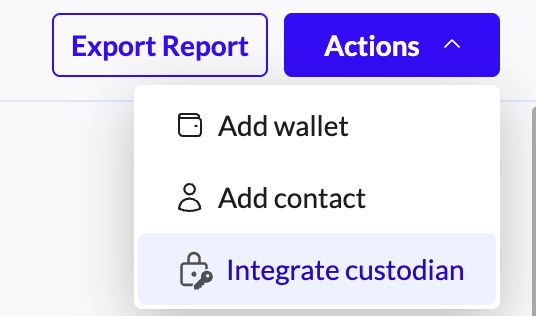
In the top-right corner of the Accounts page, click the Actions button (purple button).
A dropdown menu will appear with three options: Add wallet, Add contact, and Integrate custodian.
Step 3 — Select "Integrate custodian"
Click Integrate custodian from the dropdown menu. This will open the Integrate Custodian dialog window.
Step 4 — Select Your Custodian
In the dialog, you will see a Custodian dropdown field labeled "Please select a custodian." Click on this dropdown to open the list of supported custodians. You can scroll through the list or use the search bar at the top of the dropdown to quickly find your custodian by name.
The currently supported custodians are:
Anchorage
Bitgo
Coinbase Prime
Copper
Fireblocks
Fordefi
Kraken Custody
Layerone
Ledger Enterprise
Select the custodian you want to integrate, then click the Next button to proceed.
Step 5 — Enter Credentials
On the Enter Credentials screen, you will be asked to provide the API credentials for your selected custodian. The required fields vary depending on the custodian you chose. For example:
Fireblocks requires: API Key. Note: an informational banner will indicate that this flow uses the TRƎS Finance CSR, with a link to Connection Guidelines. If you wish to use your own CSR, you should contact TRƎS Support.
Coinbase Prime requires: Access Key, Passphrase, Signing Key, and Portfolio ID.
Other custodians will have their own specific credential fields.
Fill in all the required credential fields, then click Next to complete the integration.
Step 6 — Complete the Integration
After submitting your credentials, TRƎS will validate the connection with your custodian. Once successful, your custodian accounts and wallets will be imported and visible in the Accounts page.
Additional Notes
You can click Cancel at any point during the process to close the dialog without making changes.
You can click the back arrow (←) in the Enter Credentials step to return to the custodian selection step.
You can click the X button in the top-right corner of the dialog to close it at any time.
For custodian-specific connection guidelines, look for the Connection Guidelines link displayed in the credentials step (where available).